Your First Status Page
This tutorial walks you through creating your first public status page.
Overview
By the end of this tutorial, you'll have:
- Created components for your services
- Built a status page with widgets
- Published it for your users to view
Prerequisites
- ReliaPulse installed and running
- A user account created
- Access to the dashboard
Create Your First Components
Components represent the services you want to display on your status page.
- Navigate to Dashboard > Components
- Click "Add Component"
- Create a SERVICE component for grouping:
- Name:
Core Services - Type: SERVICE
- Description:
Our core infrastructure
- Name:
- Click "Create"
Now add an ENDPOINT component:
- Click "Add Component" again
- Fill in the details:
- Name:
API - Type: ENDPOINT
- URL: Your API health endpoint (e.g.,
https://api.example.com/health) - Check Interval: 60 seconds
- Parent Component: Select
Core Services
- Name:
- Under Conditions, add:
- Status Code equals
200 - Response time less than
1000ms
- Status Code equals
- Click "Create"
Start with SERVICE components for grouping, then add ENDPOINT components for actual health checks.
Create a Status Page
- Navigate to Dashboard > Status Pages
- Click "New Status Page"
- Fill in the basic info:
- Name:
My Company Status - Slug:
status(this creates the URL/status/status) - Description:
Real-time status of our services
- Name:
- Choose a template:
- Modern - Clean, minimal design
- Classic - Traditional status page layout
- Terminal - Developer-focused dark theme
- Click "Create"
Customize with Widgets
After creating the page, you'll be in the page editor.
Add a Status Overview Widget:
- Click "Add Widget"
- Select "Status Overview"
- Configure:
- Title: Leave empty for default
- Show Description: Enable if you want to show component descriptions
- Drag to position at the top
Add a Component List Widget:
- Click "Add Widget"
- Select "Component List"
- This shows all your components with their current status
Add an Incident Feed Widget:
- Click "Add Widget"
- Select "Incident Feed"
- Configure:
- Show Resolved: Toggle to show/hide resolved incidents
- Limit: Number of incidents to display
Configure Branding
- Click the "Settings" tab in the editor
- Upload your logo:
- Light Mode Logo: For light backgrounds
- Dark Mode Logo: For dark backgrounds
- Set colors:
- Primary Color: Your brand color
- Background Color: Page background
- Save changes
Preview and Publish
- Click "Preview" to see how your page looks
- Test both light and dark modes
- When satisfied, change Status from
DrafttoPublished - Click "Save"
View Your Status Page
Your status page is now live:
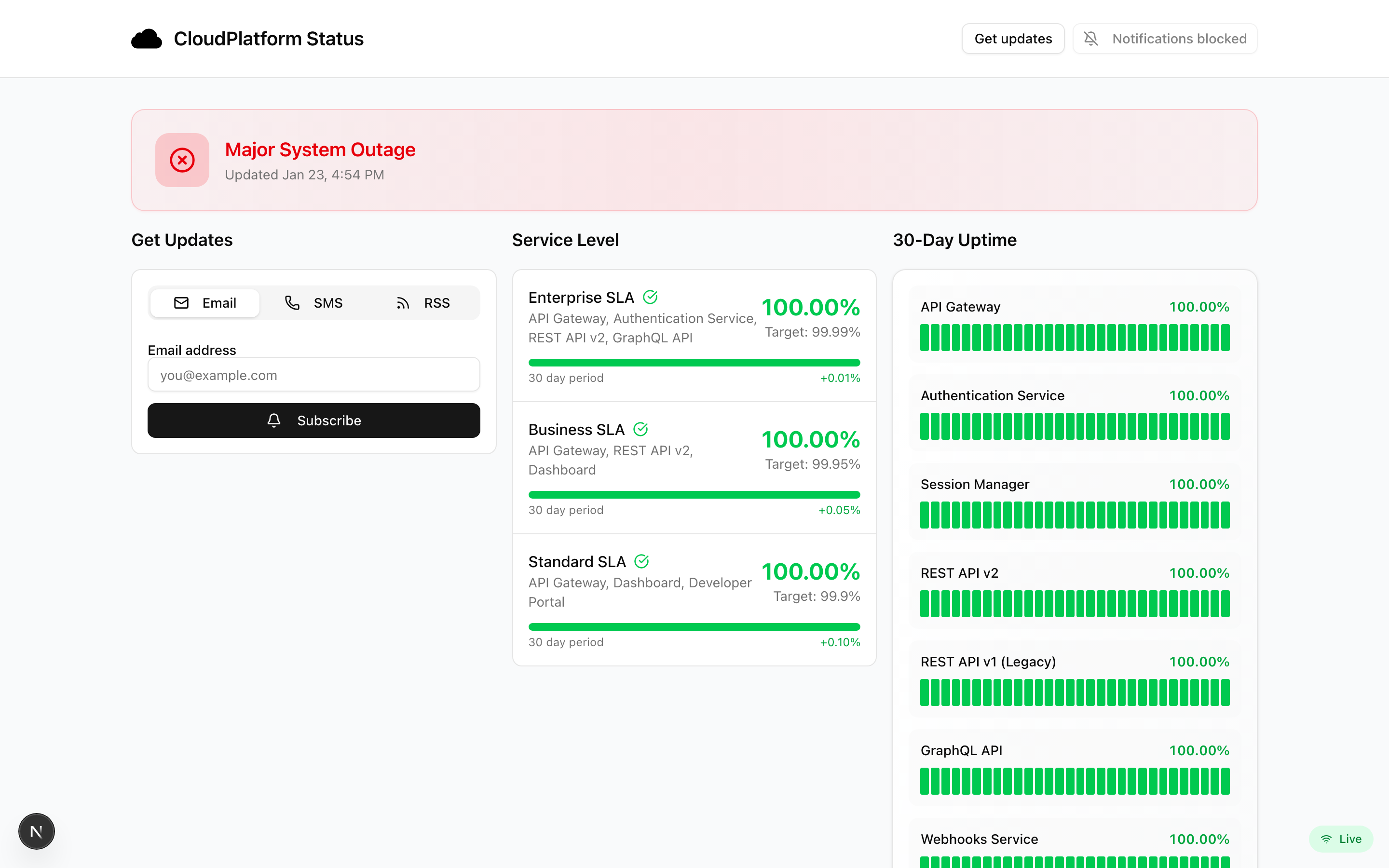
Access it at:
http://localhost:3000/status/{your-slug}Share this URL with your users!
Next Steps
Now that you have a status page:
- Create your first incident - Learn to communicate outages
- Set up notifications - Alert subscribers to changes
- Configure monitors - Automate health checks
Tips for a Great Status Page
Keep It Simple
- Focus on components users care about
- Don't expose internal implementation details
- Use clear, user-friendly names
Update Regularly
- Create incidents promptly when issues occur
- Post updates frequently during outages
- Always post a resolution with explanation
Build Trust
- Be transparent about issues
- Share postmortems for major incidents
- Show historical uptime data
Mobile-Friendly
- Test your status page on mobile devices
- Ensure widgets display correctly on small screens
- Keep descriptions concise