Incidents
Report, track, and communicate service disruptions to your users.
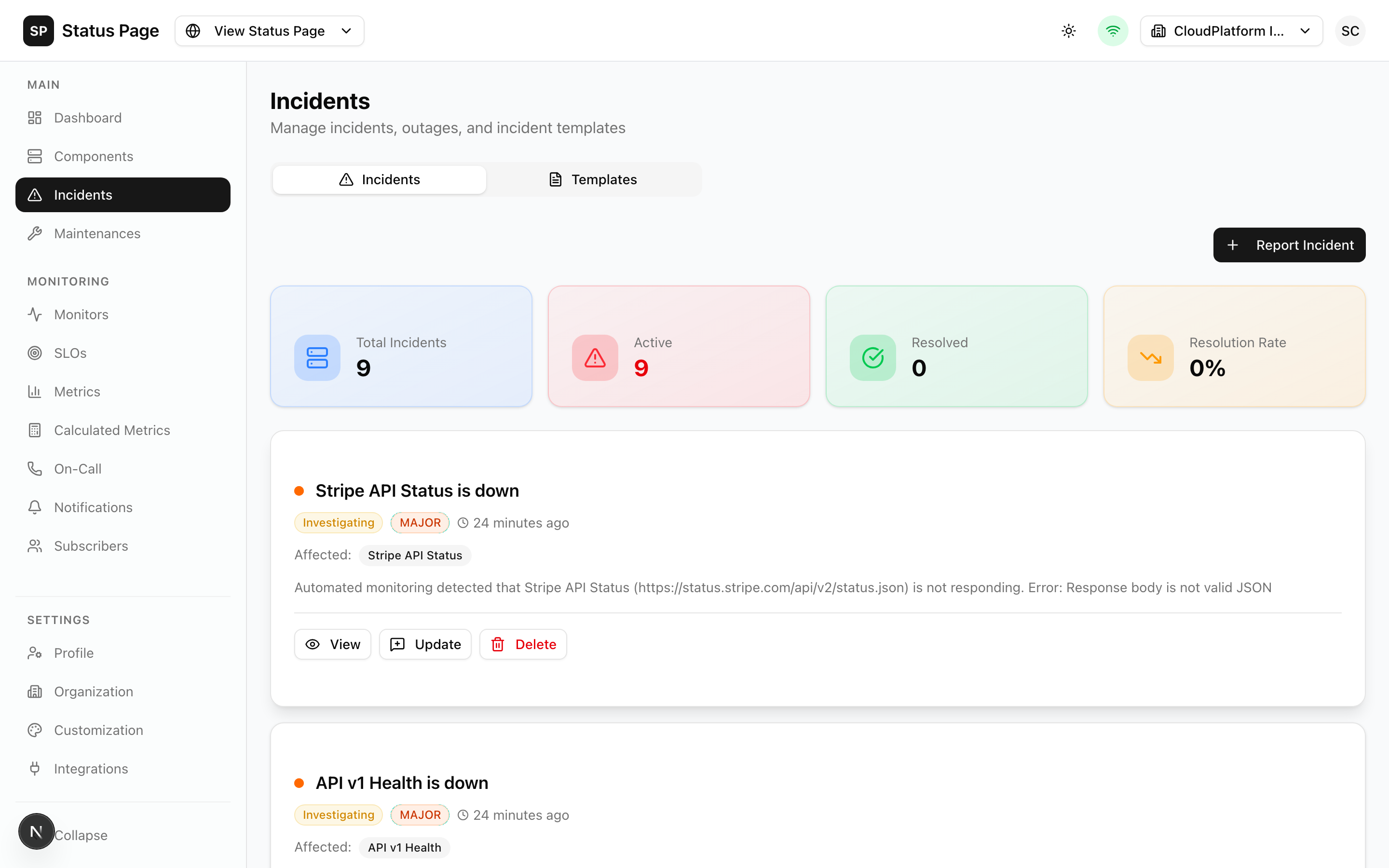
Overview
Incidents are the primary way to communicate service issues to your users. A well-managed incident:
- Keeps users informed during outages
- Builds trust through transparency
- Documents issues for future reference
Incident Lifecycle
Every incident progresses through these statuses:
| Status | Description | Typical Duration |
|---|---|---|
| Investigating | Issue reported, team is looking into it | 5-30 minutes |
| Identified | Root cause found, working on fix | 15-60 minutes |
| Monitoring | Fix deployed, watching for stability | 15-30 minutes |
| Resolved | Issue fully fixed | Final state |
Creating Incidents
Manual Creation
- Navigate to Dashboard > Incidents
- Click "New Incident"
- Fill in the details:
Required fields:
- Title: Clear, concise description (e.g., "API Response Delays")
- Status: Starting status (usually "Investigating")
- Impact: Severity level (Minor, Major, Critical)
- Affected Components: Select one or more components
- Message: Initial update explaining the situation
- Click "Create Incident"
Using Templates
For consistent messaging:
- Click "New Incident"
- Click "Use Template"
- Select a template
- Customize the pre-filled content
- Create the incident
Create templates for common incident types like "Database Issues", "Network Outage", or "Third-party Provider Down".
Automatic Creation
ENDPOINT components can create incidents automatically:
- Edit the ENDPOINT component
- Enable "Auto Create Incident"
- Set "Failure Threshold" (consecutive failures before incident)
- Configure auto-resolve settings
When the threshold is reached:
- An incident is created with "Investigating" status
- Affected components are set to "Major Outage"
- Subscribers are notified
Adding Updates
Keep users informed with regular updates:
- Open the incident
- Click "Add Update"
- Select the new status
- Write the update message
- Optionally update component status
- Click "Post Update"
Update Guidelines
| Phase | Frequency | Content |
|---|---|---|
| Investigating | Every 15-20 min | What we know, what we're checking |
| Identified | Every 20-30 min | Root cause, ETA if known |
| Monitoring | Every 30-60 min | Fix status, stability observations |
| Resolved | Once | Summary, apology if appropriate |
Status Transitions
Typical progression:
Investigating → Identified → Monitoring → ResolvedYou can skip statuses (e.g., go directly from Investigating to Resolved for quick fixes).
Resolving Incidents
When the issue is fixed:
- Open the incident
- Click "Add Update"
- Set status to "Resolved"
- Write a resolution message:
- Confirm the fix
- Explain what was done
- Apologize if appropriate
- Important: Set affected components back to "Operational"
- Click "Post Update"
Auto-Resolution
For ENDPOINT components with auto-incidents:
- Edit the component
- Enable "Auto Resolve"
- Set "Recovery Threshold" (consecutive successes before resolving)
The incident resolves automatically when:
- Health checks succeed for the recovery threshold
- Component returns to Operational
Postmortems
Document major incidents for learning:
- Open a resolved incident
- Click "Add Postmortem"
- Write the analysis:
Summary: Brief description of what happened
Impact: Who was affected and how
- Duration
- Affected users/requests
- Financial impact (if applicable)
Root Cause: Why it happened
- Technical explanation
- Contributing factors
Timeline: Sequence of events
- When detected
- Key investigation steps
- When fixed
Action Items: How to prevent recurrence
- Immediate fixes
- Long-term improvements
- Process changes
- Toggle "Publish" to show on status page
- Save
Incident Templates
Create reusable templates:
- Navigate to Settings > Templates
- Click "New Template"
- Configure:
- Name: Template identifier
- Title Pattern: Default incident title
- Impact: Default severity
- Components: Pre-selected components
- Message: Default update text
Template Variables
Use variables in templates:
| Variable | Description |
|---|---|
{{component}} | Affected component name |
{{timestamp}} | Current date/time |
{{status}} | Current status |
Incident Notifications
When incidents are created or updated:
| Event | Who Gets Notified |
|---|---|
| New incident | All subscribers, on-call team |
| Update posted | Subscribers opted in to updates |
| Resolved | All subscribers |
| Postmortem published | Optional (configurable) |
Notification Channels
Subscribers can receive notifications via:
- SMS
- Webhook
- Slack/Discord/Teams (via notification channels)
Filtering Incidents
The incidents page supports:
- Status filter: Open, Resolved, All
- Impact filter: Minor, Major, Critical
- Date range: Filter by creation date
- Component filter: Show incidents affecting specific components
- Search: Find by title or content
API Access
Create Incident
curl -X POST http://localhost:3000/api/v1/incidents \
  -H "Authorization: Bearer sk_live_xxx" \
  -H "Content-Type: application/json" \
  -d '{
    "title": "API Response Delays",
    "status": "investigating",
    "impact": "major",
    "message": "We are investigating reports of slow API responses.",
    "componentIds": ["component-id-1"],
    "componentStatuses": {
      "component-id-1": "degraded_performance"
    }
  }'
Add Update
curl -X POST http://localhost:3000/api/v1/incidents/{id}/updates \
  -H "Authorization: Bearer sk_live_xxx" \
  -H "Content-Type: application/json" \
  -d '{
    "status": "identified",
    "message": "Root cause identified as database connection issues."
  }'
Resolve
curl -X POST http://localhost:3000/api/v1/incidents/{id}/updates \
  -H "Authorization: Bearer sk_live_xxx" \
  -H "Content-Type: application/json" \
  -d '{
    "status": "resolved",
    "message": "The issue has been resolved.",
    "componentStatuses": {
      "component-id-1": "operational"
    }
  }'
Best Practices
Writing Incident Titles
- Be specific but concise
- Include affected service/area
- Avoid jargon
Good: "API - Elevated Response Times" Bad: "Issue with the thing"
Communication Tone
- Be professional but human
- Acknowledge user impact
- Avoid blame language
- Thank users for patience
Timing
- Create incidents quickly when issues are detected
- Don't wait until you have all answers
- Update regularly during active incidents
- Resolve promptly when fixed
Related Documentation
- Components - Set up services to monitor
- Notifications - Configure alert channels
- On-Call - Escalate to team members