Monitors
Automated HTTP health checks to detect issues before your users do.
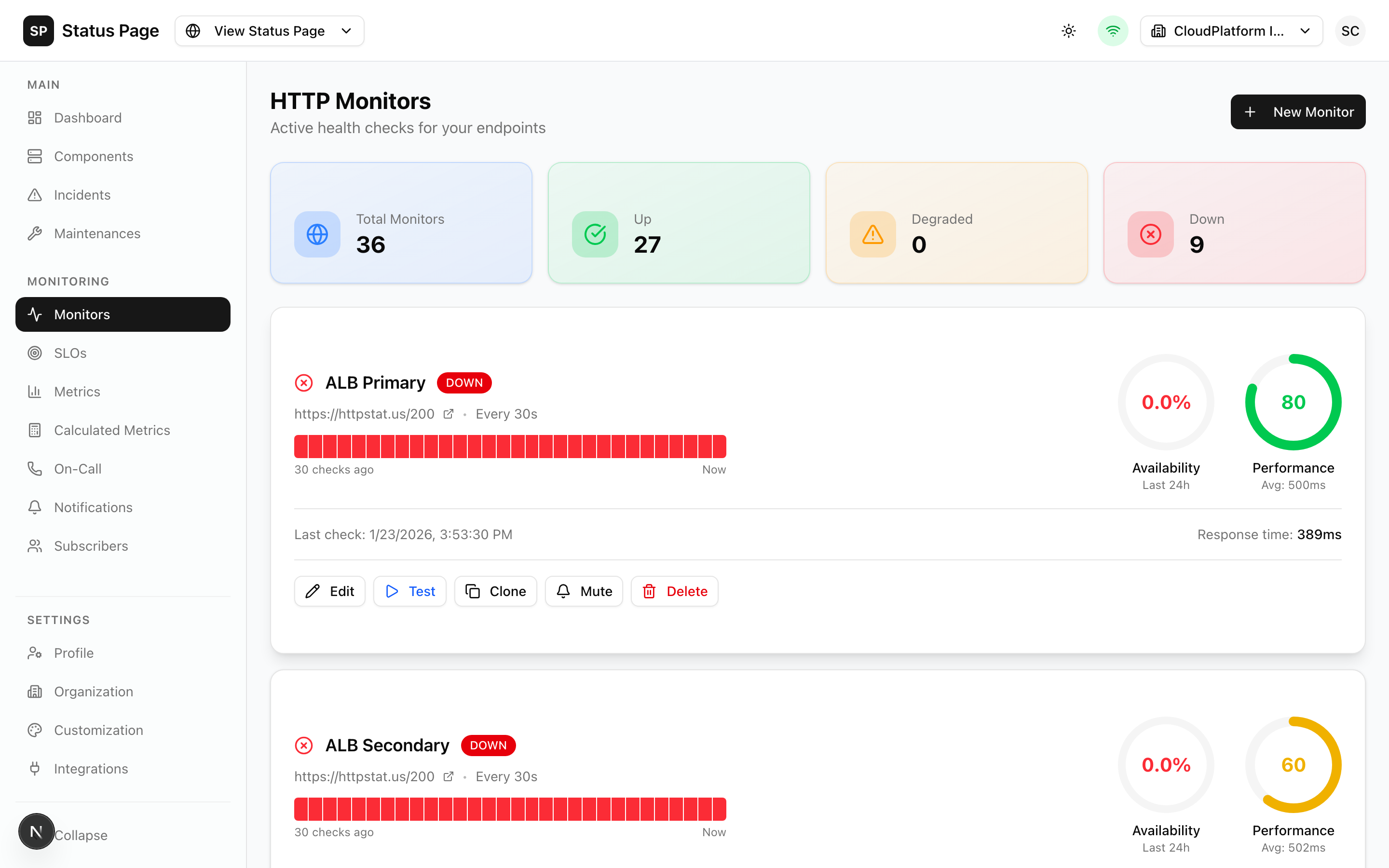
Overview
Monitors are built into ENDPOINT type components. They:
- Run HTTP health checks at configured intervals
- Evaluate response conditions (status code, response time, JSON path)
- Update component status automatically
- Create incidents when checks fail
- Send alerts to on-call teams
Creating a Monitor
Monitors are part of ENDPOINT components:
- Navigate to Dashboard > Components
- Click "Add Component"
- Select Type: ENDPOINT
- Configure monitoring settings:
Basic Settings
| Field | Description | Example |
|---|---|---|
| URL | Endpoint to check | https://api.example.com/health |
| Method | HTTP method | GET, POST, PUT, HEAD |
| Check Interval | How often to check | 15s to 24h |
| Timeout | Request timeout | 5000ms |
Request Configuration
Headers:
{
  "Authorization": "Bearer token123",
  "X-Custom-Header": "value"
}
Body (for POST/PUT):
{
  "test": true
}
Authentication:
- Basic Auth (username/password)
- Bearer Token
- API Key (header or query param)
Check Conditions
Define what constitutes a successful check:
Status Code
Check HTTP response status:
| Comparator | Description | Example |
|---|---|---|
| Equals | Exact match | Status = 200 |
| Not Equals | Doesn't match | Status != 500 |
| Greater Than | Above value | Status > 199 |
| Less Than | Below value | Status < 400 |
| Between | In range | Status 200-299 |
Response Time
Check response latency:
| Comparator | Description | Example |
|---|---|---|
| Less Than | Faster than | < 1000ms |
| Greater Than | Slower than | > 100ms |
Use response time checks to detect degraded performance before it becomes critical.
JSON Path
Assert values in JSON responses:
| Comparator | Description | Example |
|---|---|---|
| Equals | Exact value match | $.status = "ok" |
| Contains | Substring match | $.message contains "success" |
| Exists | Field present | $.data exists |
| Not Exists | Field absent | $.error not exists |
Example JSON Path expressions:
$.status              → Root field "status"
$.data.items[0].id    → First item's ID
$.users[*].email      → All user emails
$.config.enabled      → Nested field
Headers
Check response headers:
| Comparator | Description | Example |
|---|---|---|
| Equals | Exact match | Content-Type = "application/json" |
| Contains | Substring | Content-Type contains "json" |
| Exists | Header present | X-Request-Id exists |
Body Contains
Check if response body contains text:
Response body contains "healthy"
Response body contains "version"
Condition Logic
Multiple conditions are combined with AND logic:
✓ Status code = 200
AND
✓ Response time < 1000ms
AND
✓ JSON $.status = "ok"
All conditions must pass for the check to succeed.
Check Intervals
| Interval | Use Case | Notes |
|---|---|---|
| 15 seconds | Critical services | High resource usage |
| 30 seconds | Important services | Recommended for APIs |
| 1 minute | Standard monitoring | Good balance |
| 5 minutes | Less critical | Lower resource usage |
| 15 minutes | Background services | Minimal overhead |
Very short intervals (15-30s) increase load on both your infrastructure and the monitored endpoint.
Failure Handling
Failure Threshold
Set how many consecutive failures before taking action:
- 1 failure: Immediate action (may cause false positives)
- 2-3 failures: Recommended (filters transient issues)
- 5+ failures: Conservative (delays detection)
On Failure
When threshold is reached:
- Component status changes (e.g., to Major Outage)
- If auto-incident enabled, incident is created
- Notifications sent to configured channels
- On-call alerts triggered (if configured)
Auto-Incidents
Enable automatic incident creation:
- Edit the ENDPOINT component
- Enable "Auto Create Incident"
- Configure:
- Title template: e.g.,
"{{component}} is down" - Impact level: Minor, Major, Critical
- Initial status: Usually "Investigating"
- Title template: e.g.,
Auto-Resolution
When checks recover:
- Enable "Auto Resolve"
- Set "Recovery Threshold": consecutive successes needed
- When recovered:
- Incident is resolved automatically
- Component returns to Operational
- Recovery notification sent
Muting Monitors
Temporarily suppress alerts:
- Edit the component
- Enable "Muted"
- Save
When muted:
- Checks continue running ✓
- Status updates ✓
- Incidents still created (if enabled) ✓
- No notifications sent ✗
- No on-call alerts ✗
Use muting during known maintenance or when investigating issues.
Request Preview
Test your monitor configuration:
- In the component editor, click "Test Request"
- View the response:
- Status code
- Response time
- Headers
- Body
- Check condition results
- Copy cURL command for debugging
Monitor Dashboard
View all monitors in one place:
- Dashboard > Monitors shows all ENDPOINT components
- Quick filters by status, type
- Bulk actions (enable, disable, mute)
Monitor Cards
Each card shows:
- Current status
- Uptime percentage
- Last check result
- Response time trend
Actions
- Edit: Modify configuration
- Clone: Create a copy
- Mute/Unmute: Toggle alerts
- Delete: Remove the monitor
Response Time Metrics
Monitors track response times:
| Metric | Description |
|---|---|
| Current | Latest check |
| Average | Mean over time range |
| P95 | 95th percentile |
| Min/Max | Range |
View on the component detail page or status page widgets.
API Access
List Monitors
curl http://localhost:3000/api/v1/components?type=ENDPOINT \
  -H "Authorization: Bearer sk_live_xxx"
Create Monitor
curl -X POST http://localhost:3000/api/v1/components \
  -H "Authorization: Bearer sk_live_xxx" \
  -H "Content-Type: application/json" \
  -d '{
    "name": "API Health",
    "type": "ENDPOINT",
    "url": "https://api.example.com/health",
    "method": "GET",
    "checkInterval": 60,
    "conditions": [
      {
        "type": "STATUS_CODE",
        "comparator": "EQUALS",
        "target": "200"
      },
      {
        "type": "RESPONSE_TIME",
        "comparator": "LESS_THAN",
        "target": "1000"
      }
    ],
    "autoCreateIncident": true,
    "failureThreshold": 3
  }'
Manual Check
curl -X POST http://localhost:3000/api/v1/components/{id}/check \
  -H "Authorization: Bearer sk_live_xxx"
Best Practices
Endpoint Selection
- Use dedicated health endpoints
- Include dependency checks in health response
- Avoid load balancer health checks (may not reflect actual status)
Condition Design
- Start with basic checks (status code)
- Add response time as secondary check
- Use JSON path for deep health validation
Thresholds
- Use 2-3 failure threshold for most cases
- Lower for critical services
- Higher for flaky endpoints
Intervals
- 1 minute is a good default
- Shorter for user-facing critical services
- Longer for background services
Troubleshooting
False Positives
If monitors trigger incorrectly:
- Increase failure threshold
- Increase check interval
- Add timeout buffer
- Check network connectivity
Missed Outages
If monitors don't detect issues:
- Decrease failure threshold
- Add more specific conditions
- Check that endpoint reflects actual service health
Slow Checks
If checks take too long:
- Reduce timeout
- Check monitored endpoint performance
- Ensure network path is optimal
Related Documentation
- Components - Configure ENDPOINT type
- Incidents - Auto-incident behavior
- On-Call - Alert escalation