Status Pages
Build beautiful, customizable public status pages to communicate service availability.
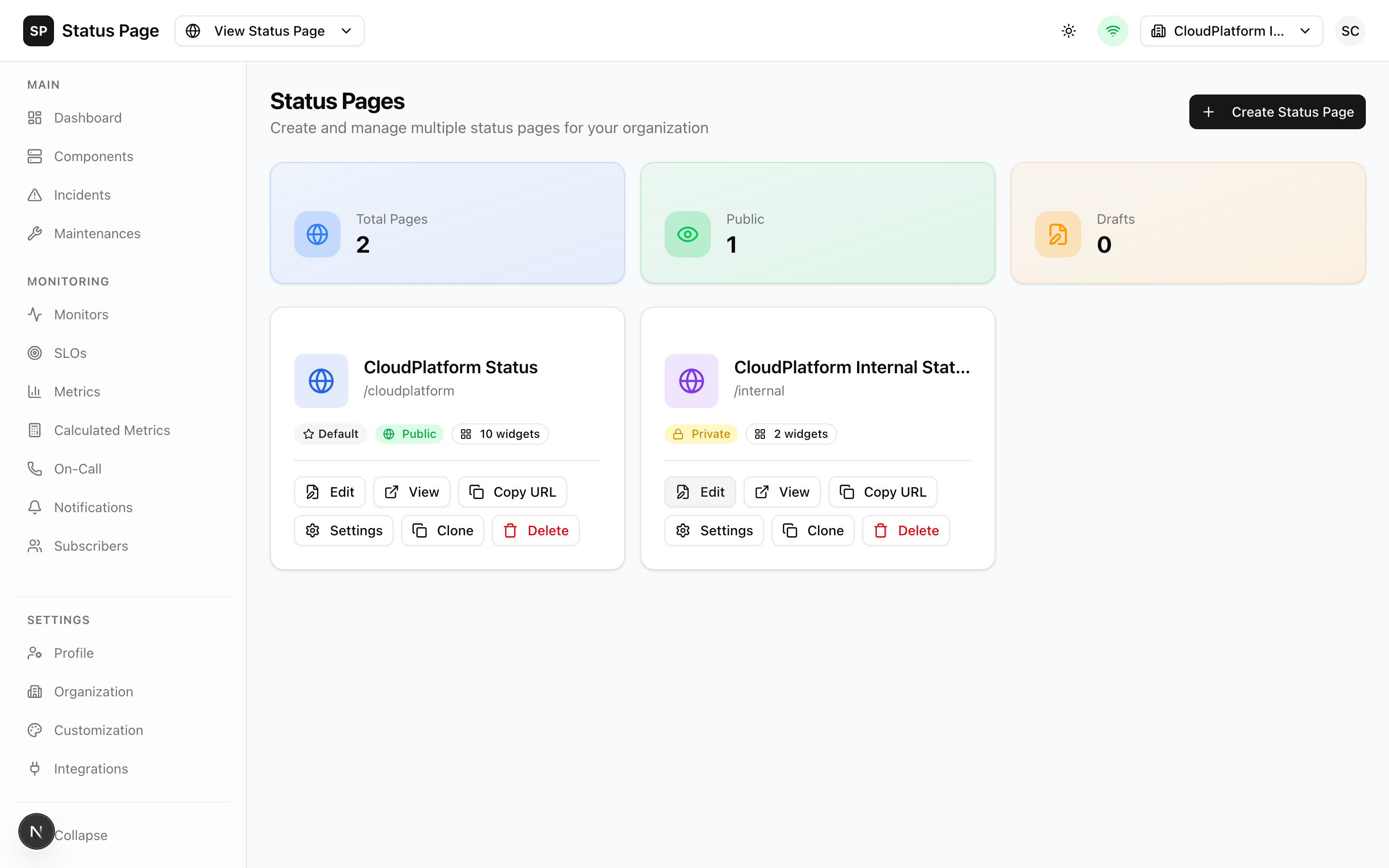
Overview
Status pages are the public-facing interface where users can:
- Check current service status
- View historical uptime data
- See active and past incidents
- Subscribe to notifications
Creating a Status Page
- Navigate to Dashboard > Status Pages
- Click "New Status Page"
- Configure basic settings:
| Field | Description |
|---|---|
| Name | Internal identifier (e.g., "Production Status") |
| Slug | URL path (e.g., "status" → /status/status) |
| Description | Brief description for SEO |
| Visibility | Public, Private, or Draft |
- Select a template
- Click "Create"
Page Visibility
| Mode | Description | Use Case |
|---|---|---|
| Public | Anyone can view | Production status pages |
| Private | Requires password | Internal team pages |
| Draft | Only visible to admins | Work in progress |
Page Templates
Choose a starting template:
Modern
Clean, minimal design with card-based layout. Good for SaaS products.
Classic
Traditional status page layout. Good for enterprise.
Terminal
Developer-focused dark theme with monospace fonts.
Blank
Start from scratch with an empty canvas.
The Page Editor
After creating a page, use the drag-and-drop editor:
Editor Layout
- Left Panel: Widget library
- Center: Page canvas
- Right Panel: Widget settings
Adding Widgets
- Click "Add Widget" or drag from the left panel
- Drop on the canvas
- Configure settings in the right panel
- Drag to reposition
- Resize using corner handles
Saving Changes
- Click "Save" to persist changes
- Use "Preview" to see the public view
- Changes are not live until saved
Widget Types
Status Overview
Displays overall system status with a colored indicator.
Settings:
- Show component count
- Show description
- Custom title
Component List
Shows all components with current status.
Settings:
- Show descriptions
- Show groups
- Collapsible groups
Infrastructure Table
Hierarchical view with status history and sparklines.
Settings:
- Time range (1h, 24h, 7d, 30d)
- Show uptime percentage
- Show response times
- Terminal theme
Uptime Chart
Historical uptime visualization as horizontal bars.
Settings:
- Time range
- Components to include
- Show percentage
Incident Feed
List of active and recent incidents.
Settings:
- Show resolved incidents
- Number to display
- Show updates
Incident History
Calendar or timeline of past incidents.
Settings:
- Time range
- Show maintenances
- Group by day/week
Metrics Chart
Display metrics from integrations.
Settings:
- Metric to display
- Chart type (line, area, bar)
- Time range
Custom HTML
Embed custom content.
Settings:
- HTML content
- CSS classes
Custom HTML is sanitized for security. JavaScript is not allowed.
Branding
Customize your status page appearance:
Logos
- Click the "Settings" tab in the editor
- Upload logos:
- Light Mode Logo: For light backgrounds
- Dark Mode Logo: For dark backgrounds
- Recommended: SVG or PNG, 200px width
Colors
- Primary Color: Buttons, links, accents
- Background Color: Page background
- Text Color: Body text
Custom CSS
Advanced users can add custom CSS:
/* Custom styles */
.status-overview {
  border-radius: 16px;
}

.component-list-item:hover {
  transform: scale(1.02);
}
Custom Domain
To use a custom domain:
- Go to Settings > Status Pages > [Your Page] > Domain
- Enter your custom domain (e.g.,
status.example.com) - Add DNS records:
CNAME status.example.com → your-status-page-url - Wait for DNS propagation
- Enable SSL
Embeddable Widgets
Embed status widgets on your website:
Badge
Small status indicator:
<iframe
  src="https://your-domain.com/embed/status/your-slug/badge"
  width="200"
  height="30"
  frameborder="0"
></iframe>
Widget
Compact status widget:
<iframe
  src="https://your-domain.com/embed/status/your-slug/widget"
  width="350"
  height="200"
  frameborder="0"
></iframe>
Floating Widget
Bottom-corner floating widget:
<script src="https://your-domain.com/embed/status/your-slug/floating.js"></script>Subscribe Functionality
Allow users to subscribe to updates:
Subscription Channels
- Email: Email notifications
- SMS: Text messages
- Webhook: Custom URL
- RSS/Atom/JSON: Feed subscriptions
Configuring Subscriptions
- In page settings, enable "Allow Subscriptions"
- Select allowed channels
- Configure channel-specific settings
Managing Subscribers
See Subscribers for details.
RSS/Atom Feeds
Each status page has automatic feeds:
| Format | URL |
|---|---|
| RSS | /api/v1/public/status/{slug}/feed?format=rss |
| Atom | /api/v1/public/status/{slug}/feed?format=atom |
| JSON | /api/v1/public/status/{slug}/feed?format=json |
Feeds include:
- Active incidents
- Recent updates
- Scheduled maintenances
SEO & Metadata
Configure for search engines:
- In page settings, go to "SEO"
- Configure:
- Title: Page title (appears in browser tab)
- Description: Meta description
- Keywords: Meta keywords
- OG Image: Social sharing image
Custom HTML Injection
Add custom code to your status page:
Head Injection
Add to <head>:
- Analytics scripts
- Custom fonts
- Meta tags
Body Start
Add after opening <body>:
- Third-party widgets
- Chat widgets
Body End
Add before closing </body>:
- Analytics
- Tracking scripts
Be careful with injected scripts. They have access to the page.
Multiple Status Pages
Create different pages for different audiences:
| Page | Audience | Content |
|---|---|---|
| Public | Customers | User-facing services |
| Internal | Employees | All infrastructure |
| Partners | API consumers | API status |
Each page can have:
- Different components
- Different branding
- Different visibility
API Access
Get Status Page
curl http://localhost:3000/api/v1/status-pages/{id} \
  -H "Authorization: Bearer sk_live_xxx"
Update Status Page
curl -X PATCH http://localhost:3000/api/v1/status-pages/{id} \
  -H "Authorization: Bearer sk_live_xxx" \
  -H "Content-Type: application/json" \
  -d '{
    "name": "Updated Name",
    "description": "Updated description"
  }'
Public API (No Auth)
# Get public status
curl http://localhost:3000/api/v1/public/status/{slug}

# Get incidents
curl http://localhost:3000/api/v1/public/status/{slug}/incidents
Best Practices
Content
- Keep component names user-friendly
- Use clear, non-technical language
- Update regularly during incidents
Design
- Match your brand colors
- Use your logo
- Keep it simple and scannable
Performance
- Don't overload with widgets
- Use appropriate time ranges
- Optimize custom images
Related Documentation
- Components - Define services to display
- Incidents - Communicate disruptions
- Subscribers - Manage notifications