Metrics
Connect external monitoring systems to display real-time metrics.
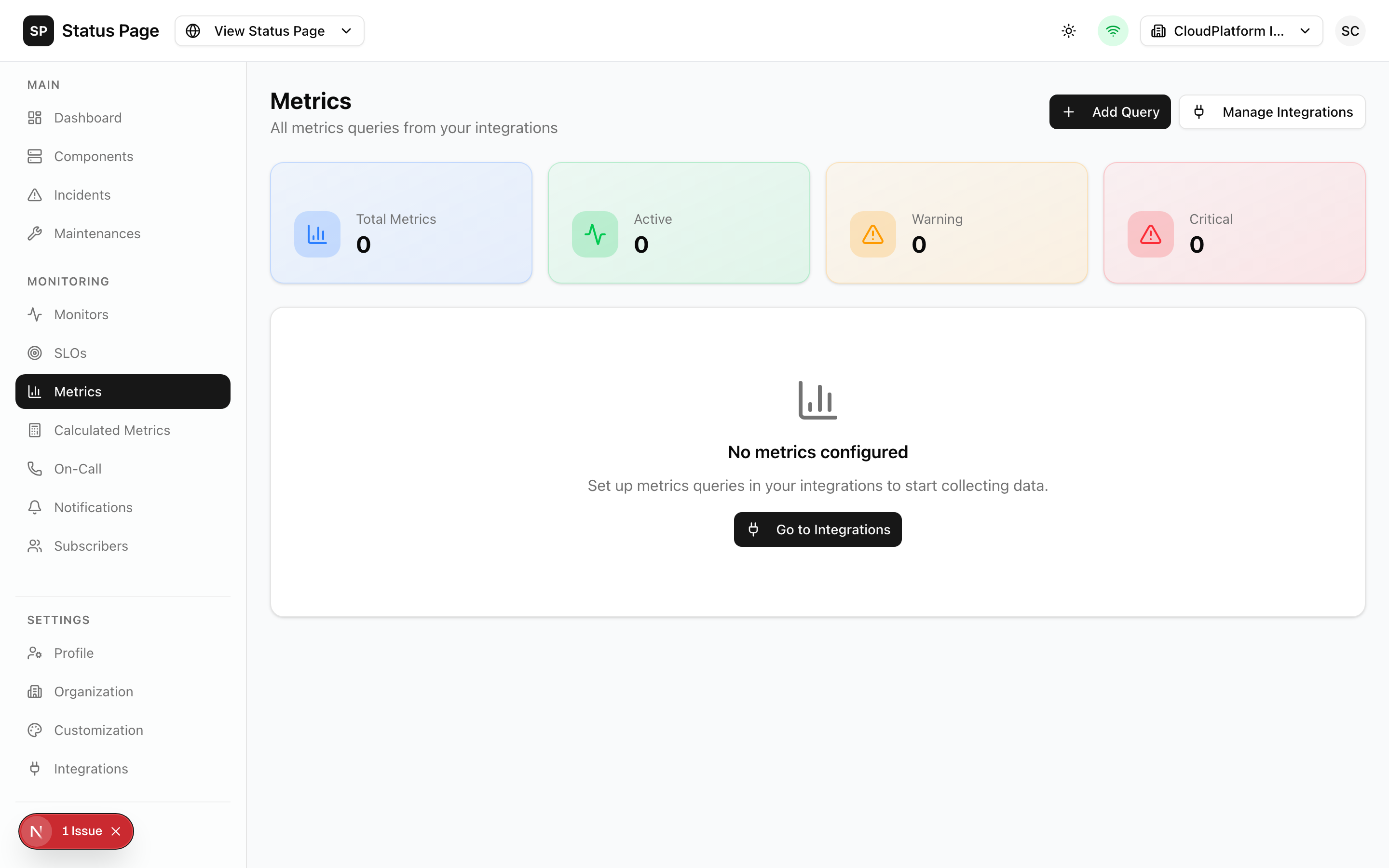
Overview
ReliaPulse integrates with external metrics providers to:
- Display real-time metrics on status pages
- Create METRIC type components
- Set thresholds for automatic status updates
- Calculate derived metrics from multiple sources
Supported Integrations
| Integration | Description |
|---|---|
| Datadog | Application and infrastructure monitoring |
| Prometheus | Open-source monitoring and alerting |
| Grafana | Query Grafana data sources |
| New Relic | Full-stack observability |
| Pingdom | Website and uptime monitoring |
Setting Up Integrations
Creating an Integration
- Navigate to Settings > Integrations
- Click "Add Integration"
- Select the provider
- Configure authentication
- Test the connection
- Save
Datadog
| Field | Description |
|---|---|
| API Key | Datadog API key |
| App Key | Datadog application key |
| Site | US1, US3, US5, EU1, AP1 |
Prometheus
| Field | Description |
|---|---|
| URL | Prometheus server URL |
| Username | Optional basic auth |
| Password | Optional basic auth |
New Relic
| Field | Description |
|---|---|
| API Key | New Relic API key |
| Account ID | New Relic account ID |
See Integrations Guide for detailed setup instructions.
Metrics Queries
Creating a Query
- Go to the integration settings
- Click "Add Metrics Query"
- Configure:
| Field | Description |
|---|---|
| Name | Query identifier |
| Query | Provider-specific query string |
| Polling Interval | How often to fetch (seconds) |
| Enabled | Toggle polling on/off |
Query Syntax
Datadog:
avg:system.cpu.user{*}
avg:aws.rds.dbload{*}
sum:http.requests{service:api}.as_count()
Prometheus:
avg(node_cpu_seconds_total{mode="idle"})
histogram_quantile(0.95, http_request_duration_seconds_bucket)
rate(http_requests_total[5m])
New Relic (NRQL):
SELECT average(cpuPercent) FROM SystemSample
SELECT count(*) FROM Transaction WHERE appName = 'MyApp'
Thresholds
Set warning and critical thresholds:
| Threshold | Description | Example |
|---|---|---|
| Warning | Performance concern | CPU > 70% |
| Critical | Service impact | CPU > 90% |
When values exceed thresholds:
- Status changes to reflect severity
- Notifications triggered (if configured)
Multi-Series Metrics
Track metrics split by tags (e.g., per host, per region):
Enabling Multi-Series
- Edit the metrics query
- Enable "Multi-Series Mode"
- Configure:
| Field | Description |
|---|---|
| Group By Tags | Tags to split by (e.g., host,env) |
| Aggregation | How to aggregate (AVG, SUM, MAX) |
| Max Series | Maximum series to track |
Series Discovery
- Save the query with multi-series enabled
- Click "Discover Series"
- The system queries and creates series entries
Managing Series
Navigate to the series list to:
- View all discovered series
- Set custom display names
- Enable/disable individual series
- View per-series charts
METRIC Components
Create components that display metric values:
Creating a METRIC Component
- Navigate to Components
- Click "Add Component"
- Select Type: METRIC
- Choose:
- Link to existing query, or
- Create new query inline
- Configure thresholds
- Save
Linking Existing Queries
- Enable "Link to Existing"
- Select the integration
- Choose the query
- Optionally select a specific series
Calculated Metrics
Combine multiple metrics with formulas:
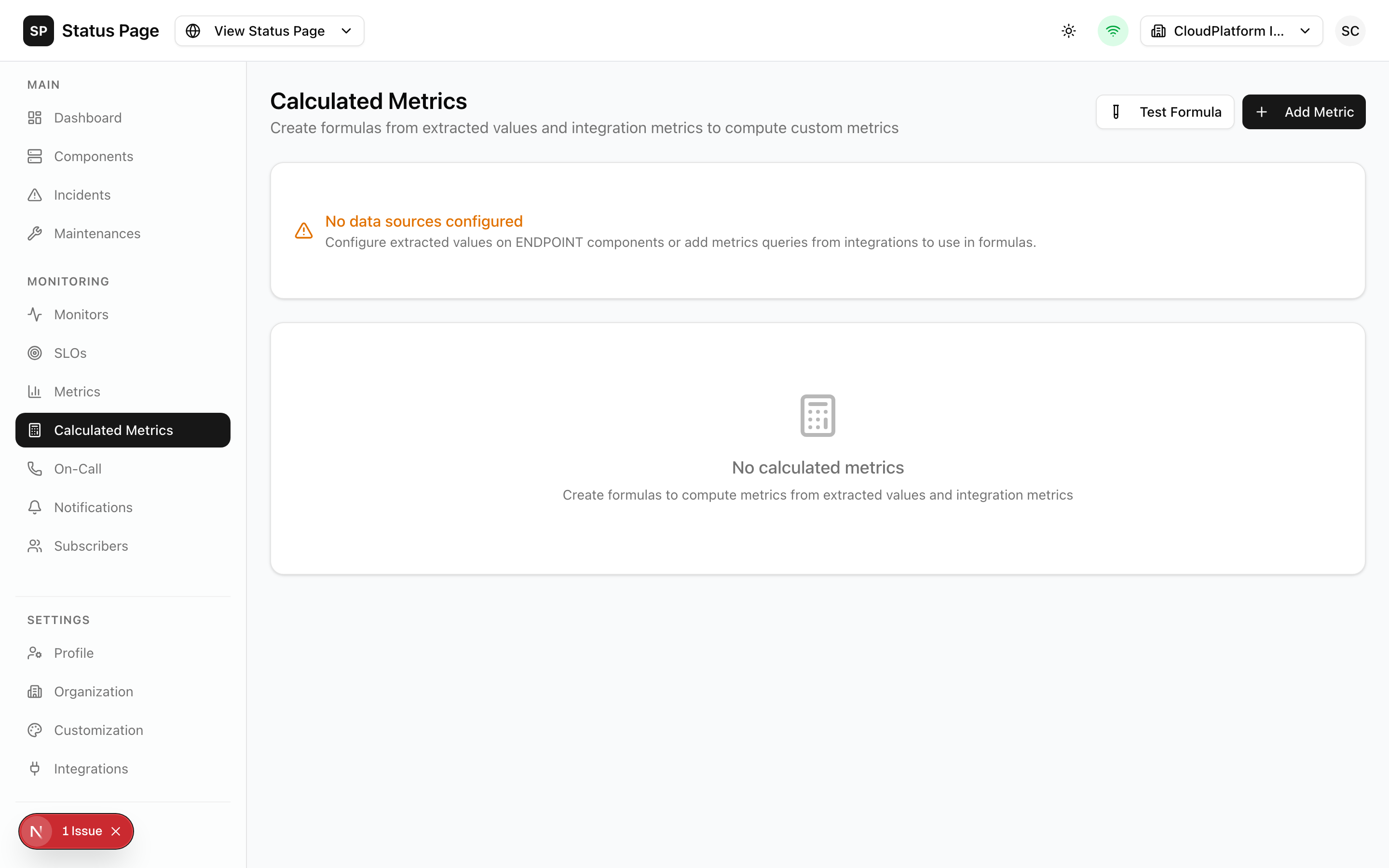
Creating a Calculated Metric
- Navigate to Settings > Calculated Metrics
- Click "Add Calculated Metric"
- Configure:
| Field | Description |
|---|---|
| Name | Metric name |
| Formula | Math expression |
| Unit | Display unit (%, ms, etc.) |
| Variables | Data sources |
Variable Sources
| Source | Description |
|---|---|
| ExtractedValue | Values from ENDPOINT responses |
| MetricsQuery | External metrics queries |
| Constant | Static numeric values |
Formula Example
Calculate DB connection usage percentage:
(current_connections / max_connections) * 100Variables:
current_connections→ MetricsQuery (Datadog)max_connections→ Constant (400)
Supported Operations
| Operation | Example |
|---|---|
| Arithmetic | a + b, a - b, a * b, a / b |
| Comparison | a > b, a < b, a == b |
| Functions | min(a, b), max(a, b), abs(a) |
| Math | sqrt(a), pow(a, 2), log(a) |
Extracted Values
Pull specific values from ENDPOINT responses:
Configuring Extraction
- Edit an ENDPOINT component
- Go to "Extracted Values"
- Click "Add Extraction"
- Configure:
| Field | Description |
|---|---|
| Name | Value identifier |
| JSON Path | Path to the value |
| Type | Number, String, Boolean |
Example
For a response:
{
  "status": "healthy",
  "metrics": {
    "connections": 42,
    "latency_ms": 15.3
  }
}
Extractions:
$.metrics.connections→42$.metrics.latency_ms→15.3
Displaying Metrics
On Status Pages
Add metrics widgets:
- Edit the status page
- Add "Metrics Chart" widget
- Select metric to display
- Configure chart type and time range
Chart Types
| Type | Description |
|---|---|
| Line | Time series with lines |
| Area | Filled area chart |
| Bar | Bar chart |
| Sparkline | Minimal inline chart |
Time Ranges
- Last hour
- Last 24 hours
- Last 7 days
- Last 30 days
API Access
List Queries
curl http://localhost:3000/api/v1/integrations/{id}/metrics \
  -H "Authorization: Bearer sk_live_xxx"
Create Query
curl -X POST http://localhost:3000/api/v1/integrations/{id}/metrics \
  -H "Authorization: Bearer sk_live_xxx" \
  -H "Content-Type: application/json" \
  -d '{
    "name": "CPU Usage",
    "query": "avg:system.cpu.user{*}",
    "pollingInterval": 60,
    "warningThreshold": 70,
    "criticalThreshold": 90
  }'
Get Data Points
curl "http://localhost:3000/api/v1/integrations/{id}/metrics/{queryId}/data?from=2026-01-01&to=2026-01-22" \
  -H "Authorization: Bearer sk_live_xxx"
Troubleshooting
No Data Showing
- Check integration credentials
- Verify query syntax
- Ensure polling is enabled
- Check worker is running
Delayed Data
- Increase polling interval
- Check metrics provider latency
- Verify time range configuration
Thresholds Not Triggering
- Verify threshold values
- Check metric units
- Ensure notifications configured
Best Practices
Query Design
- Use meaningful names
- Document complex queries
- Aggregate appropriately
- Consider cardinality
Polling Intervals
- 60 seconds for most metrics
- 15-30 seconds for critical metrics
- 5+ minutes for historical metrics
Thresholds
- Set based on historical data
- Leave headroom before critical
- Review and adjust regularly
Related Documentation
- Integrations - Detailed setup guides
- Components - METRIC type
- Status Pages - Metrics widgets