Notifications
Configure multi-channel notifications for incidents, maintenances, and alerts.
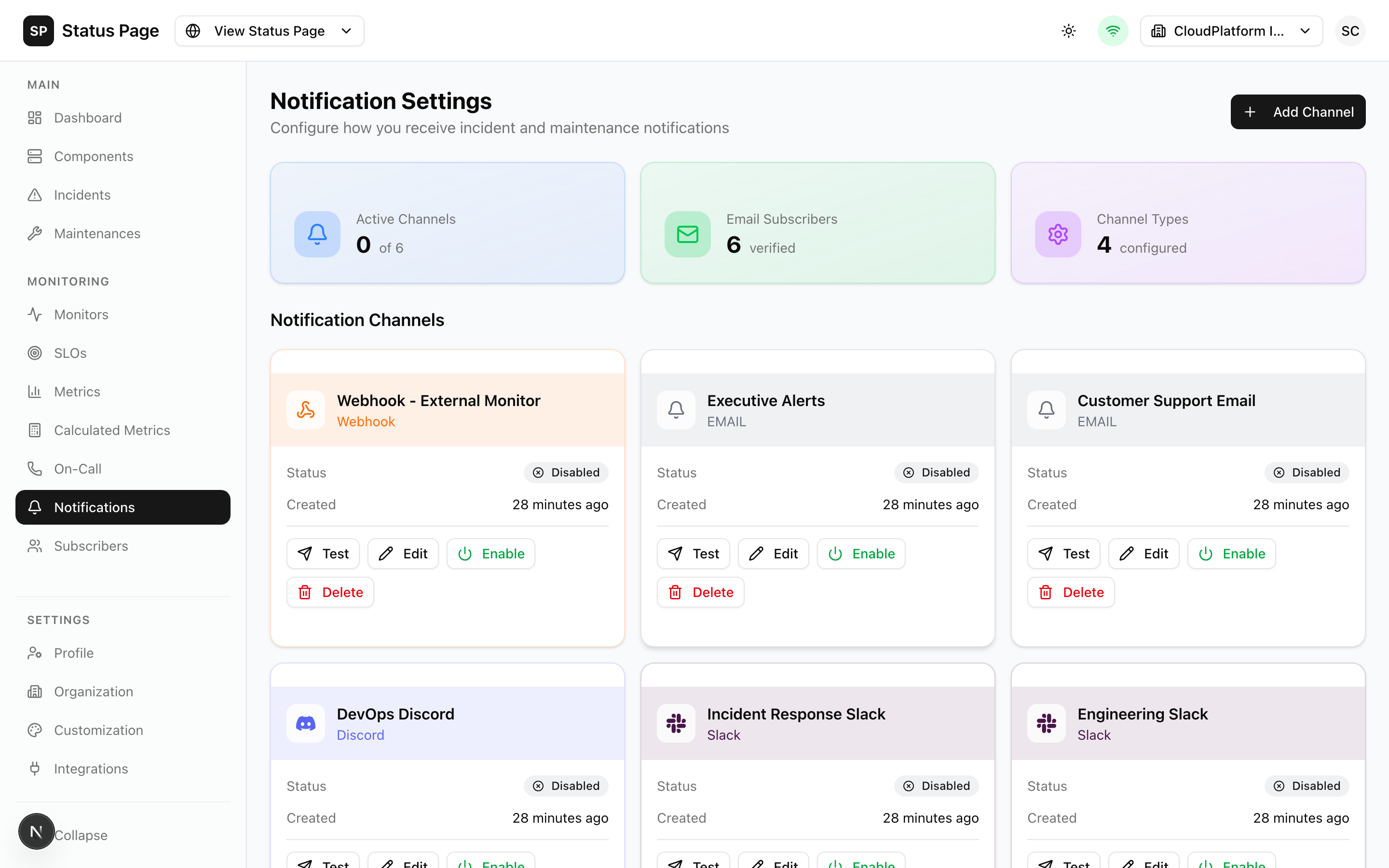
Overview
ReliaPulse supports multiple notification channels:
- Email - SMTP email notifications
- SMS - Text message alerts
- Slack - Slack workspace messages
- Discord - Discord channel webhooks
- Microsoft Teams - Teams channel connectors
- Webhooks - Custom HTTP endpoints
Notification Channels
Setting Up Channels
- Navigate to Settings > Notifications
- Click "Add Channel"
- Select channel type
- Configure settings
- Test the connection
- Save
Send notifications via SMTP:
| Field | Description | Example |
|---|---|---|
| SMTP Host | Mail server | smtp.sendgrid.net |
| SMTP Port | Server port | 587 |
| Username | SMTP user | apikey |
| Password | SMTP password | SG.xxx |
| From Address | Sender email | status@example.com |
| From Name | Sender name | ReliaPulse |
Testing:
# Test email configuration
curl -X POST http://localhost:3000/api/v1/notification-channels/{id}/test \
  -H "Authorization: Bearer sk_live_xxx"
Slack
Send messages to Slack channels:
- Create a Slack App or use incoming webhooks
- Get the webhook URL
- Configure in ReliaPulse:
| Field | Description |
|---|---|
| Webhook URL | Slack webhook URL |
| Channel | Target channel (optional override) |
Message format:
- Rich formatting with status colors
- Component and incident details
- Action buttons (if app configured)
Discord
Send messages to Discord channels:
- Go to channel settings → Integrations → Webhooks
- Create a webhook and copy the URL
- Configure:
| Field | Description |
|---|---|
| Webhook URL | Discord webhook URL |
Message format:
- Embedded messages with colors
- Status icons
- Timestamp and details
Microsoft Teams
Send cards to Teams channels:
- In Teams, go to channel → Connectors
- Add "Incoming Webhook"
- Configure and copy the URL
- Add to ReliaPulse:
| Field | Description |
|---|---|
| Webhook URL | Teams connector URL |
Message format:
- Adaptive cards
- Action buttons
- Status indicators
SMS
Send text messages via Twilio:
| Field | Description |
|---|---|
| Account SID | Twilio account ID |
| Auth Token | Twilio auth token |
| From Number | Twilio phone number |
SMS notifications require a Twilio account. Charges apply per message.
Custom Webhooks
Send data to any HTTP endpoint:
| Field | Description |
|---|---|
| URL | Endpoint URL |
| Method | POST, PUT, etc. |
| Headers | Custom headers (JSON) |
| Body Template | Custom payload template |
Payload template variables:
{
  "type": "{{event_type}}",
  "incident": {
    "id": "{{incident.id}}",
    "title": "{{incident.title}}",
    "status": "{{incident.status}}"
  },
  "timestamp": "{{timestamp}}"
}
Notification Events
Incident Events
| Event | Triggered When |
|---|---|
incident.created | New incident created |
incident.updated | Incident status/details changed |
incident.resolved | Incident marked resolved |
incident.reopened | Resolved incident reopened |
Maintenance Events
| Event | Triggered When |
|---|---|
maintenance.scheduled | New maintenance created |
maintenance.started | Maintenance begins |
maintenance.updated | Maintenance details changed |
maintenance.completed | Maintenance finished |
Monitor Events
| Event | Triggered When |
|---|---|
monitor.down | Health check failed |
monitor.recovered | Health check recovered |
monitor.degraded | Performance degraded |
Channel Configuration
Event Filtering
Choose which events trigger notifications:
- Edit the channel
- Under "Events", select events to notify
- Save
Component Filtering
Limit notifications to specific components:
- Edit the channel
- Under "Components", select which components
- Leave empty for all components
Impact Filtering
Filter by incident severity:
- Minor incidents
- Major incidents
- Critical incidents only
Notification Templates
Customize notification content:
Email Templates
- Navigate to Settings > Email Branding
- Customize:
- Logo
- Colors
- Header/Footer text
- Custom CSS
Message Templates
Create templates for consistent messaging:
Subject: [{{status}}] {{title}}

Status: {{status}}
Impact: {{impact}}
Components: {{components}}

{{message}}

View details: {{url}}
Testing Notifications
Test Button
- Open a notification channel
- Click "Send Test"
- Verify receipt
Test Incident
- Create a test incident
- Mark as test/internal
- Verify notifications
- Delete the incident
Subscriber Notifications
Subscribers receive notifications based on their preferences:
| Subscriber Type | Receives |
|---|---|
| Email notifications | |
| SMS | Text messages |
| Webhook | HTTP POST requests |
See Subscribers for details.
Rate Limiting
Prevent notification spam:
| Limit Type | Default | Configurable |
|---|---|---|
| Per channel | 10/min | Yes |
| Per subscriber | 5/min | Yes |
| Global | 100/min | Yes |
API Access
List Channels
curl http://localhost:3000/api/v1/notification-channels \
  -H "Authorization: Bearer sk_live_xxx"
Create Channel
curl -X POST http://localhost:3000/api/v1/notification-channels \
  -H "Authorization: Bearer sk_live_xxx" \
  -H "Content-Type: application/json" \
  -d '{
    "name": "Slack Engineering",
    "type": "slack",
    "config": {
      "webhookUrl": "https://hooks.slack.com/xxx"
    },
    "events": ["incident.created", "incident.updated", "incident.resolved"]
  }'
Test Channel
curl -X POST http://localhost:3000/api/v1/notification-channels/{id}/test \
  -H "Authorization: Bearer sk_live_xxx"
Troubleshooting
Notifications Not Sending
- Check channel is enabled
- Verify event is selected
- Check component filter
- Review notification logs
- Test the channel
Delayed Notifications
- Check worker is running
- Review Redis connection
- Check queue backlog
- Monitor worker logs
Wrong Recipients
- Verify subscriber settings
- Check component filters
- Review notification rules
Best Practices
Channel Organization
- Create channels per team/purpose
- Use descriptive names
- Document notification purpose
Event Selection
- Start with critical events only
- Add more as needed
- Avoid notification fatigue
Testing
- Test after any configuration change
- Use test incidents regularly
- Verify all channels periodically
Related Documentation
- Subscribers - User subscriptions
- On-Call - Alert escalation
- Incidents - Incident notifications