On-Call
Manage on-call schedules, rotations, and alert escalation.
Overview
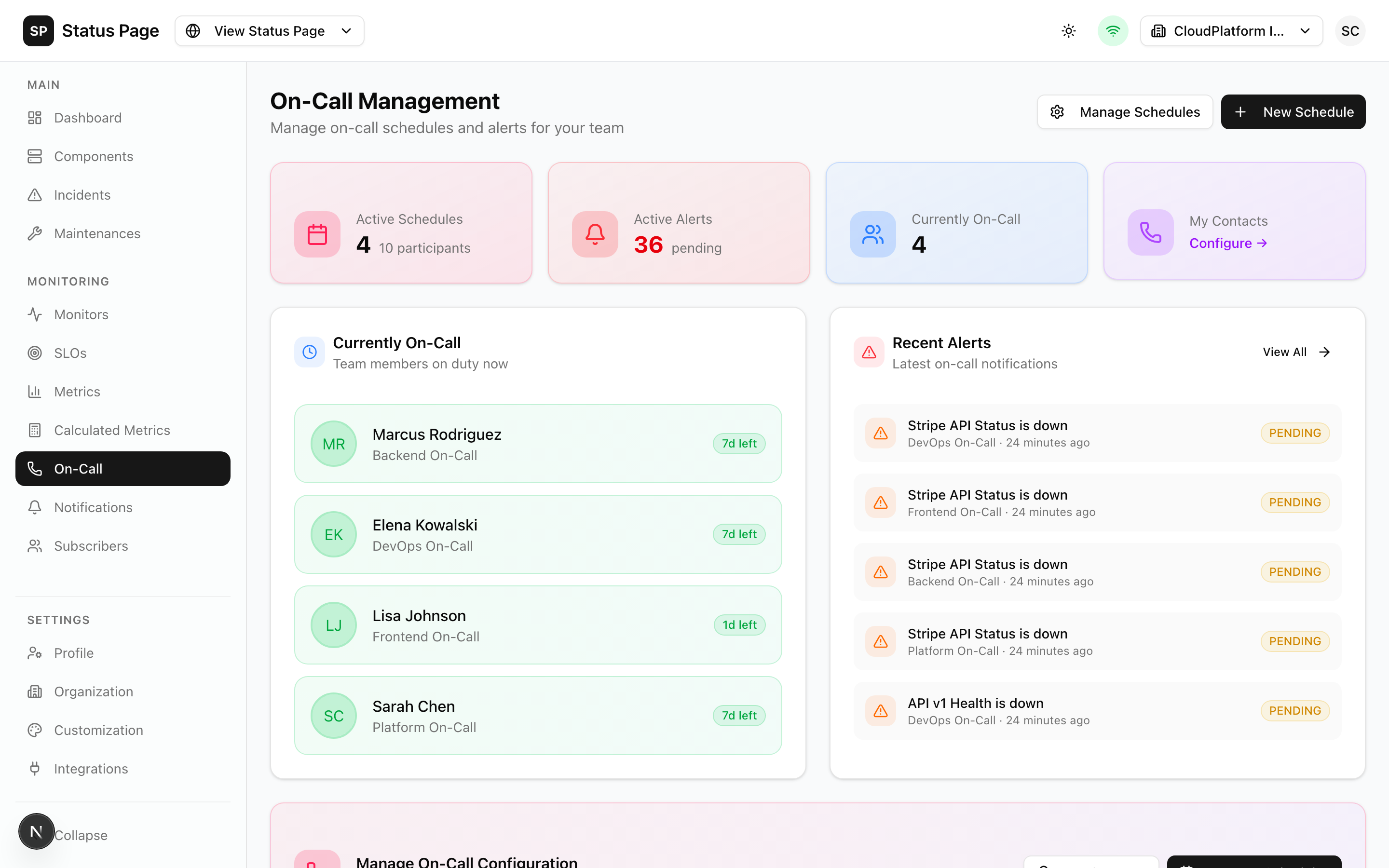
The on-call system ensures the right people are alerted when issues occur:
- Schedules: Define who is on-call when
- Rotations: Automatic rotation between team members
- Escalation: Multi-level alert escalation
- Alerts: Track and acknowledge incoming alerts
On-Call Dashboard
Navigate to Dashboard > On-Call to see:
- Current on-call person(s)
- Active alerts
- Upcoming schedule changes
- Recent alert history
Schedules
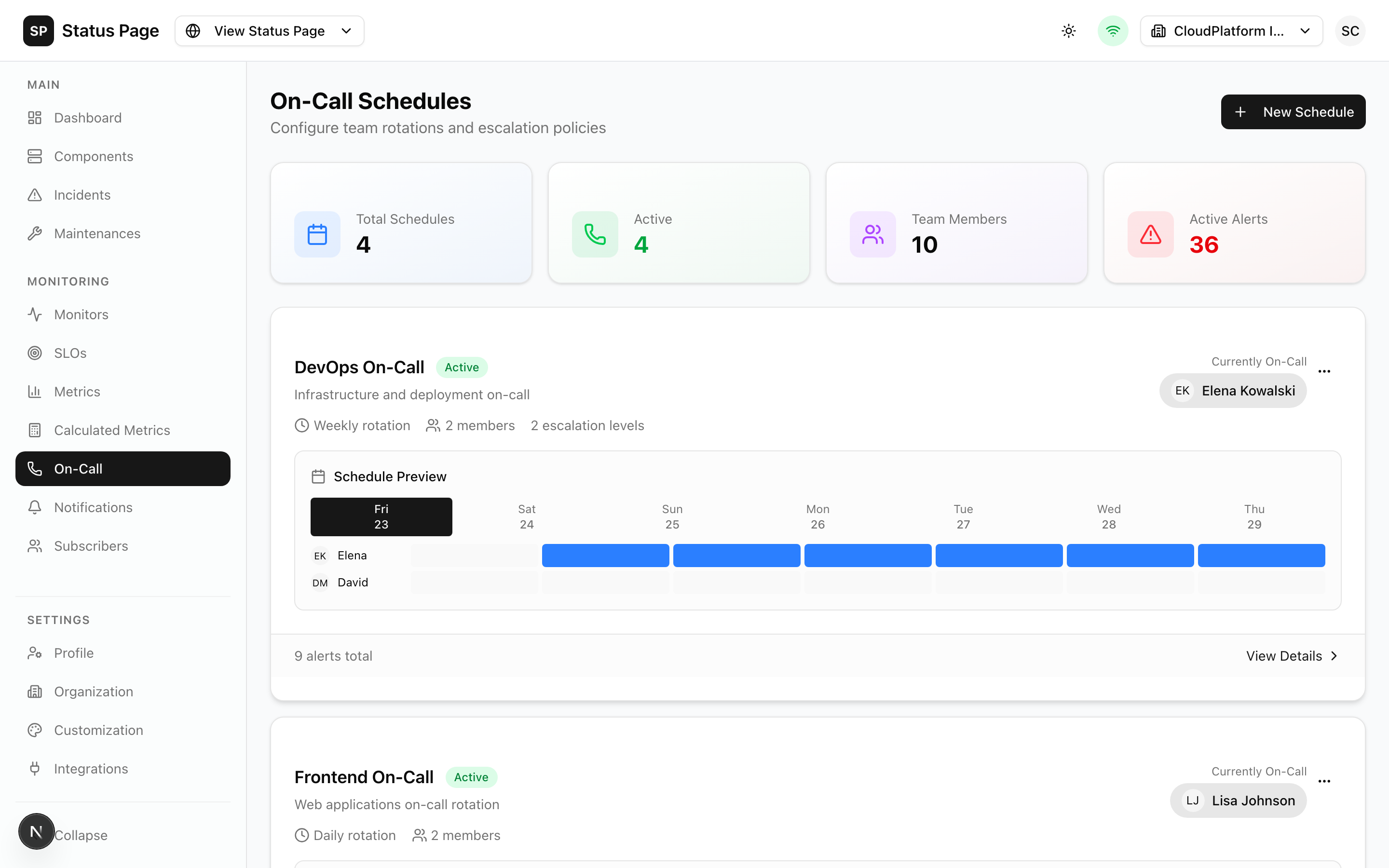
Creating a Schedule
- Navigate to On-Call > Schedules
- Click "New Schedule"
- Configure:
| Field | Description |
|---|---|
| Name | Schedule identifier |
| Timezone | Schedule timezone |
| Start Date | When schedule begins |
Rotation Types
Weekly
Each person is on-call for a full week:
Week 1: Alice
Week 2: Bob
Week 3: Charlie
Week 4: Alice (cycles)
Daily
Each person is on-call for a day:
Monday: Alice
Tuesday: Bob
Wednesday: Charlie
...
Custom Hours
Define specific time slots:
Weekdays 9am-5pm: Team A
Weekdays 5pm-9am: Team B
Weekends: Team C
Adding Participants
- Open the schedule
- Click "Add Participant"
- Select team member
- Set their rotation order
- Configure contact methods
Overrides
Create temporary overrides:
- Open the schedule
- Click "Add Override"
- Select:
- User to replace
- Replacement user
- Start/end times
- Save
Use overrides for vacations, sick days, or planned absences.
Escalation Policies
Define how alerts escalate if not acknowledged:
Creating a Policy
- Navigate to On-Call > Schedules
- Open a schedule
- Click "Escalation Policy"
- Add levels:
Level 1 (immediate):
- Primary on-call
- Wait 5 minutes
Level 2 (5 min):
- Secondary on-call
- Wait 10 minutes
Level 3 (15 min):
- Team lead + manager
- Final escalation
Escalation Rules
| Setting | Description |
|---|---|
| Wait Time | Minutes before escalating |
| Notify | Who to alert at this level |
| Repeat | Repeat this level before escalating |
Escalation Example
Alert triggered
  ↓
Level 1: Alert on-call engineer
  ↓ (5 min, not acknowledged)
Level 2: Alert on-call + backup
  ↓ (10 min, not acknowledged)
Level 3: Alert entire team
Alerts
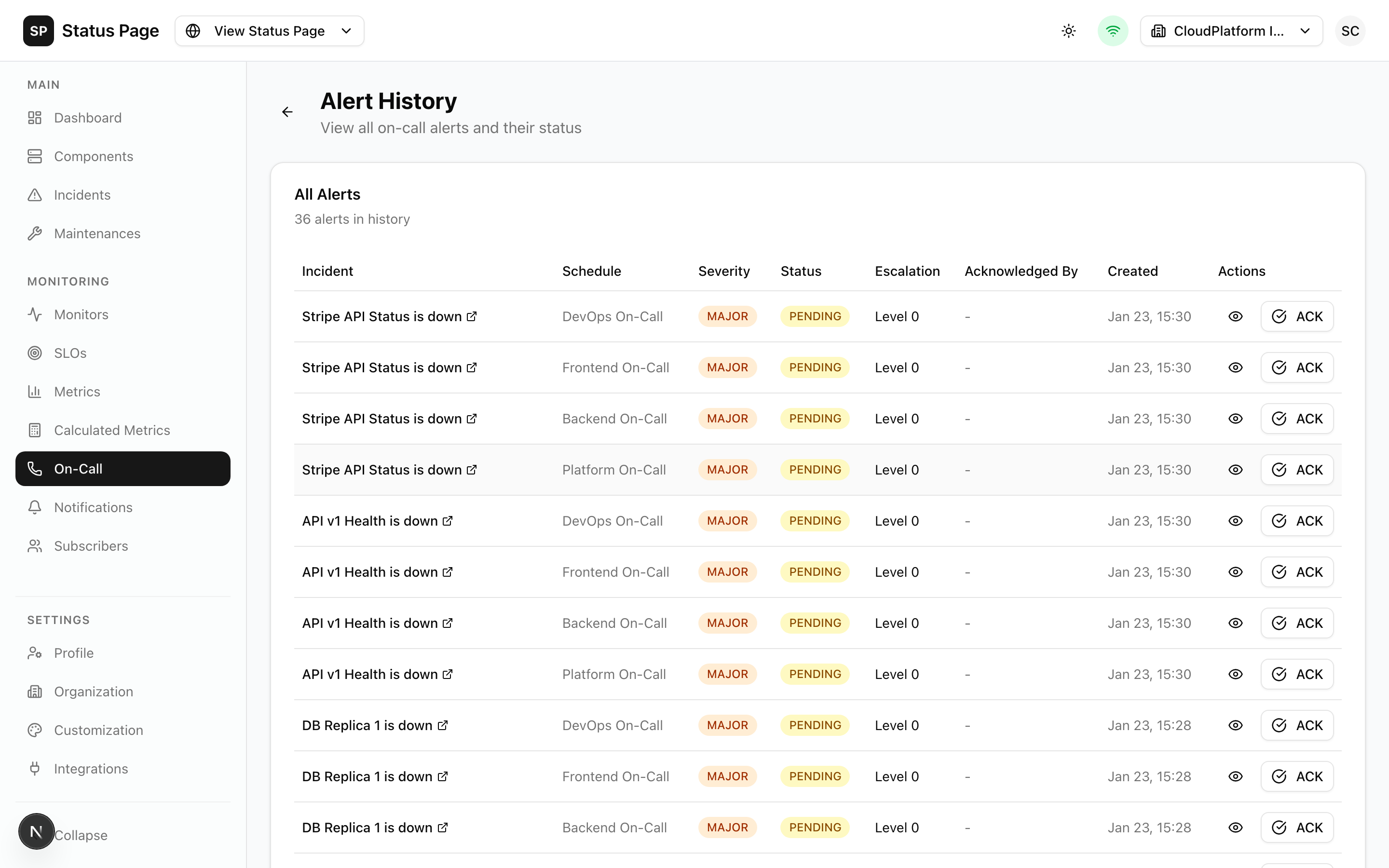
How Alerts are Triggered
Alerts are created when:
- Monitor fails (ENDPOINT component)
- Manual incident created with on-call notification
- API alert created
Alert States
| State | Description |
|---|---|
| Triggered | Alert created, not acknowledged |
| Acknowledged | Someone is working on it |
| Resolved | Issue fixed |
| Snoozed | Temporarily silenced |
Acknowledging Alerts
From the dashboard:
- Click the alert
- Click "Acknowledge"
Via email/SMS:
- Reply with "ack" or click the link
Via API:
curl -X POST http://localhost:3000/api/v1/oncall/alerts/{id}/acknowledge \
  -H "Authorization: Bearer sk_live_xxx"
Snoozing Alerts
Temporarily silence an alert:
- Open the alert
- Click "Snooze"
- Select duration (5m, 15m, 1h, etc.)
The alert will re-trigger after the snooze period if not resolved.
Resolving Alerts
Mark an alert as fixed:
- Open the alert
- Click "Resolve"
Or resolve automatically when:
- Monitor recovers
- Linked incident is resolved
Contact Methods
Configure how team members receive alerts:
Setting Up Contacts
- Navigate to Settings > On-Call Contacts
- Click "Add Contact"
- Configure methods:
| Method | Description |
|---|---|
| Email alerts | |
| SMS | Text message alerts |
| Phone | Voice call (if configured) |
| Push | Mobile app notifications |
Notification Order
Set the order for trying contact methods:
1. Push notification (immediate)
2. SMS (30 sec delay if no response)
3. Phone call (2 min delay if no response)
Quiet Hours
Define times when certain methods are disabled:
Quiet hours: 10pm - 8am
During quiet hours: Only phone calls
On-Call Contacts
Per-User Settings
Each user can configure:
- Primary email/phone
- Backup contact methods
- Notification preferences
- Quiet hours
Testing Contacts
- Open contact settings
- Click "Test" next to each method
- Verify receipt
Schedule Views
Calendar View
See schedule as a calendar:
- Color-coded by person
- Shows overrides
- Click to edit
Timeline View
Linear timeline of coverage:
- Who is on-call when
- Gap detection
- Coverage summary
List View
Table of upcoming shifts:
- User, start, end
- Sortable and searchable
API Access
Current On-Call
curl http://localhost:3000/api/v1/oncall/schedules/{id}/current \
  -H "Authorization: Bearer sk_live_xxx"
Create Alert
curl -X POST http://localhost:3000/api/v1/oncall/alerts \
  -H "Authorization: Bearer sk_live_xxx" \
  -H "Content-Type: application/json" \
  -d '{
    "title": "High CPU Usage",
    "description": "Server CPU at 95%",
    "scheduleId": "schedule-id",
    "severity": "critical"
  }'
List Alerts
curl http://localhost:3000/api/v1/oncall/alerts \
  -H "Authorization: Bearer sk_live_xxx"
Best Practices
Schedule Design
- Ensure 24/7 coverage
- Balance load fairly
- Account for timezones
- Plan for holidays
Escalation
- Start with small team
- Add management at later levels
- Keep escalation times reasonable
- Test escalation periodically
Alert Fatigue Prevention
- Tune monitor thresholds
- Use appropriate failure thresholds
- Review and eliminate noisy alerts
- Group related alerts
Documentation
- Document escalation procedures
- Create runbooks for common issues
- Keep contact info updated
- Regular schedule reviews
Troubleshooting
Alerts Not Triggering
- Check schedule has participants
- Verify escalation policy exists
- Confirm contact methods configured
- Check monitor auto-incident settings
Wrong Person Alerted
- Check current schedule
- Look for overrides
- Verify timezone settings
- Check rotation order
Alerts Not Escalating
- Verify escalation policy
- Check wait times
- Confirm next level has contacts
- Review escalation logs
Related Documentation
- Monitors - Configure health checks
- Notifications - Alert channels
- Incidents - Incident management