Components
Components represent the services, systems, and infrastructure you want to track and display.
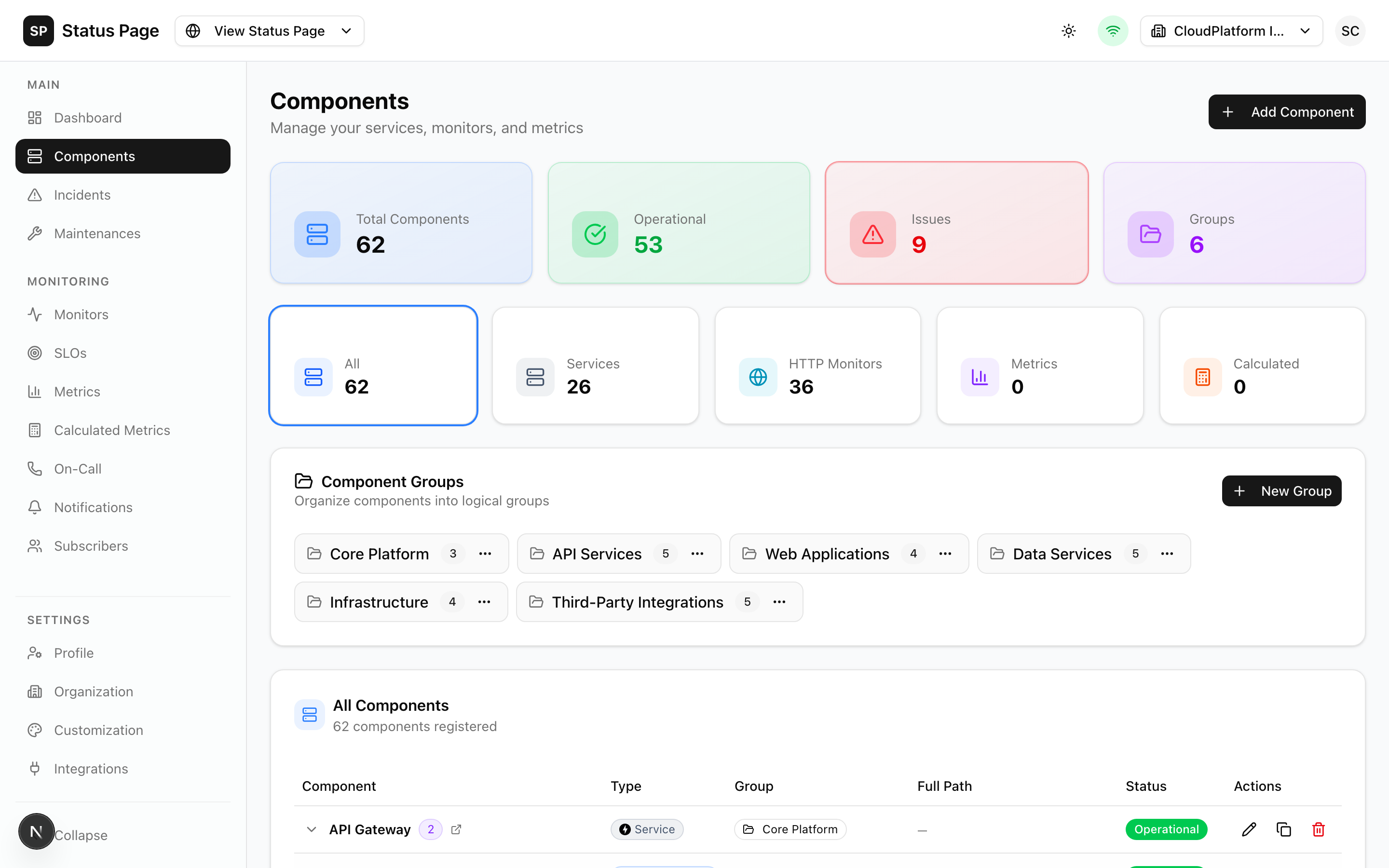
Overview
Components are the foundation of ReliaPulse. They represent anything you want to:
- Display on your public status page
- Monitor for availability
- Track uptime metrics
- Associate with incidents
Component Types
ReliaPulse uses a polymorphic component model with three types:
SERVICE Type
Manual status control - Best for logical groupings or services you don't monitor directly.
SERVICE components:
├── Don't have automated health checks
├── Status is set manually or via incidents
├── Great for grouping other components
└── Can contain subcomponents
Use cases:
- Component groups (e.g., "Backend Services", "Infrastructure")
- Third-party services you can't monitor
- Services monitored by external tools
ENDPOINT Type
HTTP health checks - Best for APIs, websites, and any HTTP endpoint.
ENDPOINT components:
├── Automated HTTP health checks
├── Configurable check intervals
├── Custom conditions (status code, response time, JSON path)
├── Auto-create incidents on failure
└── Track response time and uptime metrics
Configuration options:
- URL: The endpoint to check
- Method: GET, POST, PUT, DELETE, etc.
- Headers: Custom request headers
- Body: Request body for POST/PUT
- Check Interval: How often to check (15s to 24h)
- Timeout: Request timeout in milliseconds
- Conditions: What defines "healthy"
METRIC Type
External metrics - Best for infrastructure metrics from Datadog, Prometheus, etc.
METRIC components:
├── Pull metrics from integrations
├── Set warning/critical thresholds
├── Display values on status page
└── Auto-update status based on thresholds
Configuration options:
- Integration: Which integration to use
- Query: Metrics query (e.g.,
avg:cpu_usage{*}) - Polling Interval: How often to fetch
- Warning Threshold: Value that triggers warning
- Critical Threshold: Value that triggers critical
Creating Components
Via Dashboard
- Navigate to Dashboard > Components
- Click "Add Component"
- Fill in the form:
- Name: Display name (e.g., "API Server")
- Type: SERVICE, ENDPOINT, or METRIC
- Description: Optional description
- Parent: Optional parent component for hierarchy
- Configure type-specific options
- Click "Create"
Via API
# Create a SERVICE component
curl -X POST http://localhost:3000/api/v1/components \
  -H "Authorization: Bearer sk_live_xxx" \
  -H "Content-Type: application/json" \
  -d '{
    "name": "Backend Services",
    "type": "SERVICE",
    "description": "Core backend infrastructure"
  }'

# Create an ENDPOINT component
curl -X POST http://localhost:3000/api/v1/components \
  -H "Authorization: Bearer sk_live_xxx" \
  -H "Content-Type: application/json" \
  -d '{
    "name": "API Health Check",
    "type": "ENDPOINT",
    "url": "https://api.example.com/health",
    "method": "GET",
    "checkInterval": 60,
    "expectedStatus": 200,
    "parentComponentId": "parent-id-here"
  }'
Component Hierarchy
Components can be organized in a parent-child hierarchy for better organization:
├── Infrastructure (SERVICE)
│   ├── AWS US-East (SERVICE)
│   │   ├── Primary Database (ENDPOINT)
│   │   └── Cache Cluster (METRIC)
│   └── AWS EU-West (SERVICE)
│       └── Secondary Database (ENDPOINT)
└── Applications (SERVICE)
    ├── Web App (ENDPOINT)
    └── Mobile API (ENDPOINT)
Benefits of Hierarchy
- Visual organization: Clear grouping on status pages
- Inherited status: Parent status reflects worst child status
- Bulk operations: Affect multiple components at once
Setting Up Hierarchy
- Create parent components first (typically SERVICE type)
- When creating child components, select the parent in the "Parent Component" field
- Components can be nested up to 3 levels deep
Component Status
| Status | Color | Description |
|---|---|---|
| Operational | 🟢 Green | Everything working normally |
| Degraded Performance | 🟡 Yellow | Slower than normal |
| Partial Outage | 🟠 Orange | Some features unavailable |
| Major Outage | 🔴 Red | Service completely down |
| Under Maintenance | 🔵 Blue | Planned maintenance |
Status Updates
Manual update:
- Edit the component
- Change the status field
- Save
Via incident:
- Create an incident
- Select affected components
- Choose impact level for each
Automatic (ENDPOINT):
- Health check failures automatically update status
- Recovery restores to Operational
Custom Icons
Display custom icons for components:
- Edit the component
- Enter an Icon URL (must be publicly accessible)
- Toggle "Show on Status Page" to display on public pages
- Save
Use SVG icons for best quality. Recommended size: 24x24 or 32x32 pixels.
Cloning Components
Create copies of existing components:
- Open the component you want to clone
- Click the "Clone" button (or use the menu)
- The clone is created with:
- "(Copy)" suffix on the name
- Disabled by default (review before enabling)
- All settings copied
Via API:
curl -X POST http://localhost:3000/api/v1/components/{id}/clone \
  -H "Authorization: Bearer sk_live_xxx"
Muting Components
Mute ENDPOINT components to suppress alerts while still monitoring:
- Edit the component
- Toggle "Muted" on
- Save
When muted:
- Health checks continue running
- Status still updates
- No notifications are sent
- No on-call alerts trigger
- A "Muted" badge appears in the dashboard
Use muting during known issues or when you want to temporarily silence alerts without losing monitoring data.
Filtering Components
The components page supports several filters:
- Type filter: Show only SERVICE, ENDPOINT, or METRIC
- Status filter: Show only specific statuses
- Search: Find by name or description
- Groups: Filter by parent component
Deleting Components
- Open the component
- Click "Delete"
- Confirm the deletion
Deleting a component also deletes:
- All subcomponents
- Historical uptime data
- Associated metric data
This action cannot be undone.
Best Practices
Naming Conventions
- Use clear, user-facing names
- Avoid internal codenames
- Be consistent across similar components
Organization
- Create SERVICE groups for logical categorization
- Keep hierarchy shallow (2-3 levels max)
- Group by user impact, not internal architecture
Monitoring
- Set appropriate check intervals (not too frequent)
- Use meaningful conditions
- Configure auto-incidents for critical services
Related Documentation
- Monitors - Configure health check conditions
- Metrics - Set up external metrics
- Status Pages - Display components on public pages