Settings
Configure organization, team, security, and advanced settings.
Organization Settings
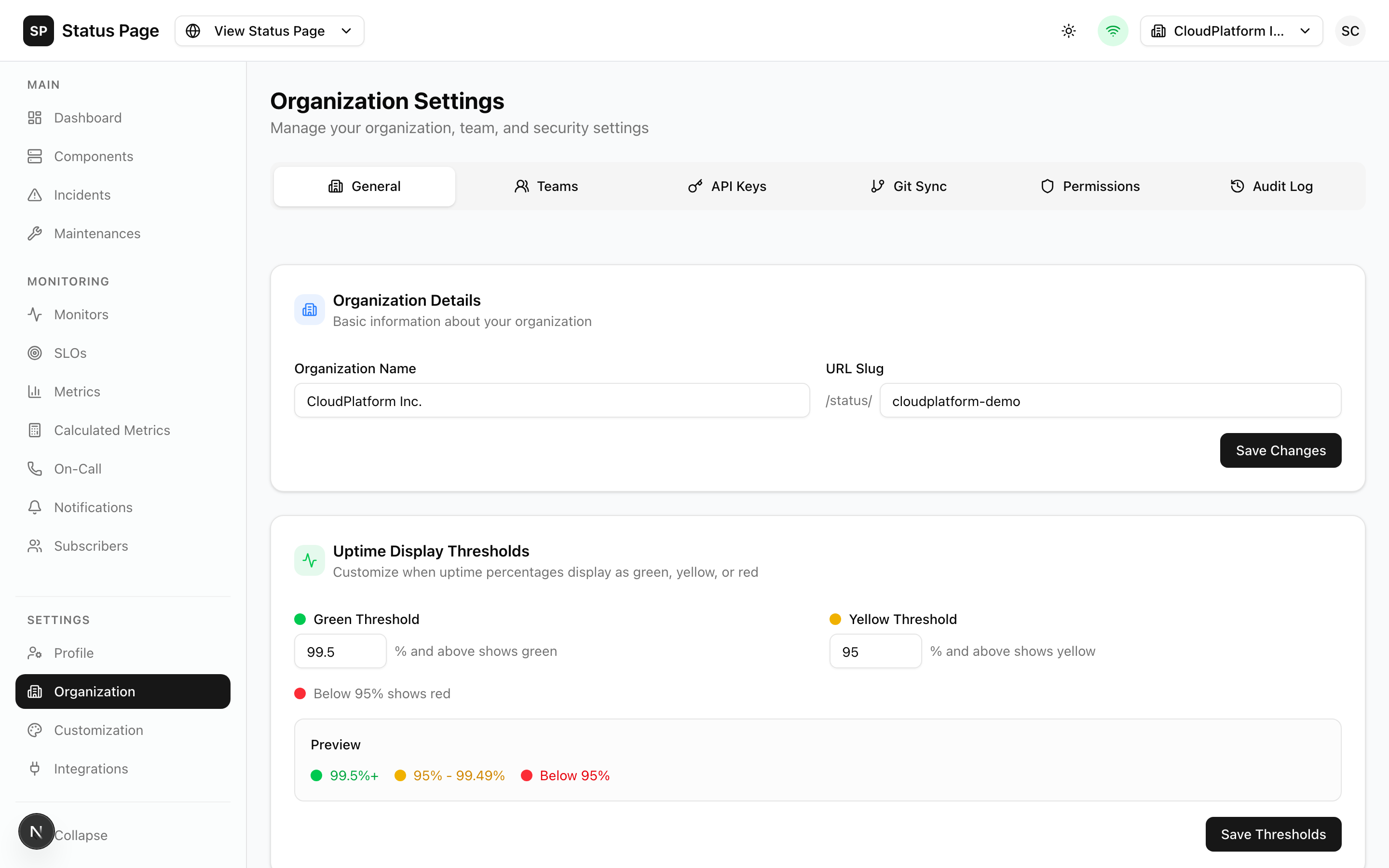
Navigate to Settings > Organization to configure:
Basic Information
| Field | Description |
|---|---|
| Name | Organization display name |
| Slug | URL identifier |
| Timezone | Default timezone |
| Logo | Organization logo |
Uptime Display Thresholds
Customize how uptime percentages are colored:
| Threshold | Description | Default |
|---|---|---|
| Green | Good status | ≥ 99% |
| Yellow | Warning status | ≥ 95% |
| Red | Critical status | < 95% |
Team Management
Roles
| Role | Permissions |
|---|---|
| Owner | Full access, delete org, manage billing |
| Admin | Full access except org deletion |
| Member | Create/manage incidents, components |
| Viewer | Read-only dashboard access |
Custom Roles
Create custom roles with granular permissions:
- Navigate to Settings > Permissions
- Click "New Role"
- Configure:
- Role name
- Permission checkboxes by category
Inviting Team Members
- Navigate to Settings > Organization
- Click "Invite Member"
- Enter email and select role
- Send invitation
Removing Members
- Find the member in the team list
- Click "Remove"
- Confirm removal
API Keys
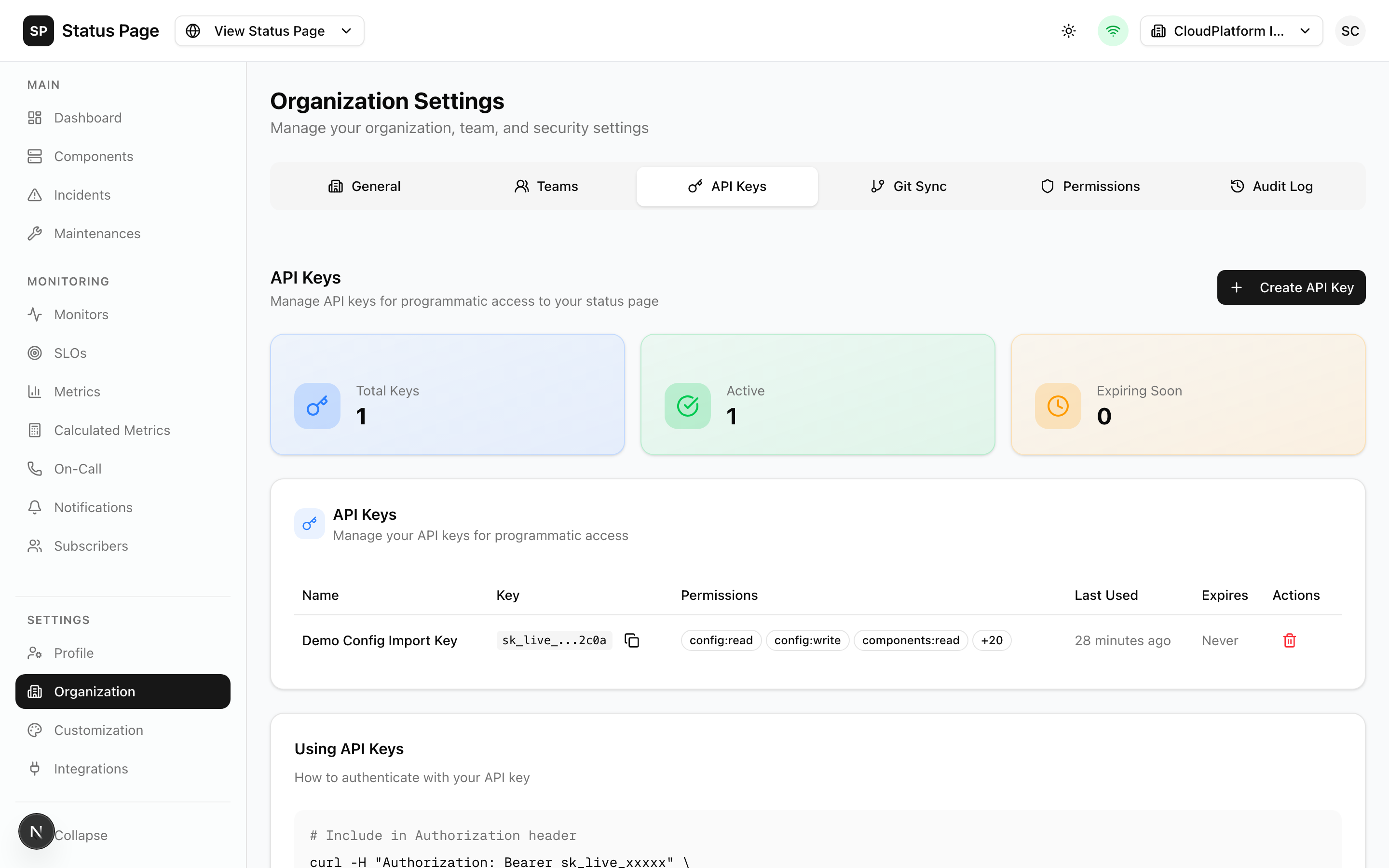
Programmatic access to the API.
Creating an API Key
- Navigate to Settings > API Keys
- Click "New API Key"
- Configure:
- Name (descriptive identifier)
- Permissions (select specific or all)
- Expiration (optional)
- Copy the key immediately - it won't be shown again
Key Format
sk_live_xxxxxxxxxxxxxxxxxxxxxxxxxxxxxxxxPermissions
| Permission | Description |
|---|---|
components:read | Read components |
components:write | Create/update/delete components |
incidents:read | Read incidents |
incidents:write | Create/update incidents |
config:read | Read configuration |
config:write | Apply configuration |
Store API keys securely. Never commit them to version control.
Revoking Keys
- Find the key in the list
- Click "Revoke"
- Confirm - the key stops working immediately
Audit Logs
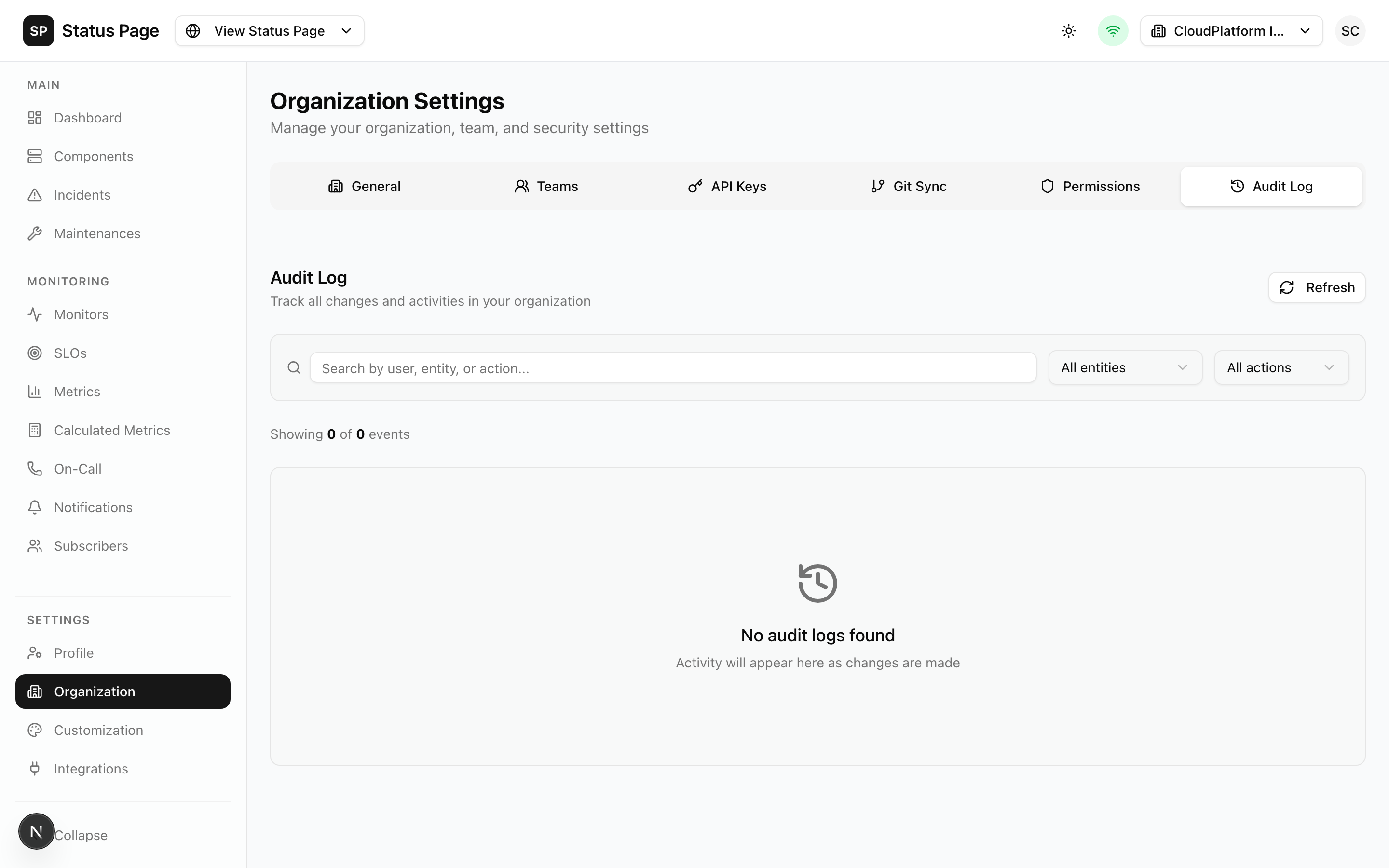
Track all changes in your organization:
Viewing Logs
- Navigate to Settings > Audit Log
- Filter by:
- Date range
- User
- Resource type
- Action type
Logged Actions
- User authentication
- Component changes
- Incident operations
- Settings modifications
- API key usage
Log Retention
Audit logs are retained for 90 days by default.
Git Sync
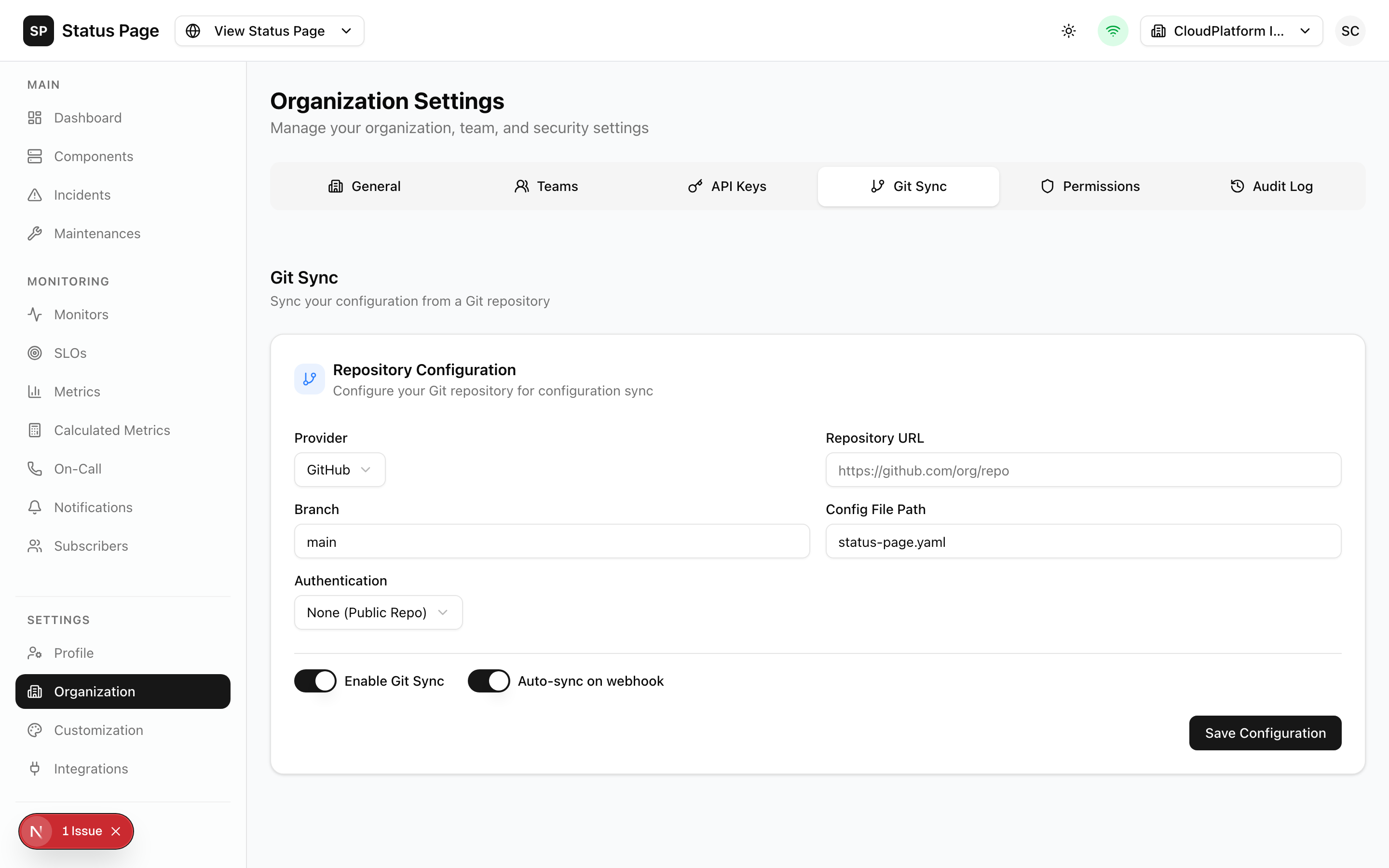
Manage infrastructure as code:
Configuration
- Navigate to Settings > Git Sync
- Configure:
- Repository URL
- Branch
- Config file path
- Authentication
Supported Providers
- GitHub
- GitLab
- Bitbucket
Sync Modes
| Mode | Description |
|---|---|
| Manual | Trigger sync from dashboard |
| Webhook | Auto-sync on push |
See Integrations > Git Sync for details.
Templates
Create reusable templates:
Incident Templates
Pre-configured incident settings:
- Navigate to Settings > Templates
- Click "New Template"
- Configure:
- Title pattern
- Default impact
- Components
- Message content
- Save
Maintenance Templates
Templates for recurring maintenances.
Branding
Status Page Branding
Configure in each status page's settings:
- Logo (light/dark mode)
- Colors
- Custom CSS
Email Branding
- Navigate to Settings > Email Branding
- Configure:
- Logo
- Primary color
- Header/footer text
- Custom styles
Notification Settings
Configure notification behavior:
Rate Limits
| Setting | Default |
|---|---|
| Per subscriber | 5/min |
| Per channel | 10/min |
| Global | 100/min |
Retry Settings
| Setting | Default |
|---|---|
| Max retries | 3 |
| Retry delay | 30s, 60s, 120s |
Custom Code
Custom code has security implications. Use carefully.
Inject custom HTML/JS into status pages:
Head Injection
Add to <head>:
- Analytics
- Fonts
- Meta tags
Body Start
Add after <body>:
- Third-party widgets
Body End
Add before </body>:
- Scripts
- Tracking
Profile Settings
Individual user settings:
Account
- Navigate to Settings > Profile
- Configure:
- Display name
- Password
- Profile picture
Notifications
Personal notification preferences:
- Email digest frequency
- Browser notifications
Sessions
View and manage active sessions:
- See all logged-in devices
- Revoke individual sessions
- Revoke all sessions
Integrations
Configure external integrations:
See Integrations Guide for:
- Datadog
- Prometheus
- Slack
- And more
Data Management
Export Data
Export organization data:
curl http://localhost:3000/api/v1/config/export \
  -H "Authorization: Bearer sk_live_xxx" > config.yaml
Delete Organization
This action is irreversible and removes all data.
- Navigate to Settings > Organization
- Scroll to "Danger Zone"
- Click "Delete Organization"
- Confirm by typing organization name
- Enter password
- Delete
Related Documentation
- API Reference - API documentation
- Architecture - Technical overview
- Deployment - Environment variables